Top 10 WordPress Theme Identifier Tools & Methods [2026]
You're staring at a WordPress site that feels polished enough to steal ideas from, but the theme name is nowhere on the page. The header looks custom, the footer is minimal, and the usual giveaway links are buried or removed. That's the exact moment a WordPress theme identifier earns its keep.
The good news is that identifying a theme is usually straightforward when the site hasn't been intentionally hardened. WordPress themes often expose their fingerprints through the page source, stylesheet paths, and asset folders, which is why manual checks still work so well alongside automated tools. The ecosystem is also huge, with the WordPress.org theme repository containing 14,852 themes in 2026, and the 20 most-installed themes accounting for 61.8% of all active WordPress installs in the directory (WordPress theme stats). That concentration matters in practice, because a detector that recognizes the dominant families already covers a large share of real sites.
If you need to go beyond a quick guess, use a tool first, then verify manually. That workflow is faster than source-diving from scratch, and more reliable than trusting a single label from an opaque scanner. For broader platform research, budget and builder selection can start with this platform comparison guide, but for theme work specifically, the list below gets straight to the tools and the inspection methods that hold up in the field.
Table of Contents
- 1. AI Website Detector
- 2. What WordPress Theme Is That?
- 3. WPThemeDetector
- 4. ScanWP
- 5. IsItWP WordPress Theme Detector
- 6. Gochyu WordPress Theme Detector
- 7. Kinsta Free WordPress Theme Detector
- 8. Wappalyzer
- 9. WhatRuns browser extension
- 10. WPBeginner WordPress Theme Detector
- 11. Manual Method Inspecting the Page Source
- 12. Advanced Method Using Browser Developer Tools
- 12 WordPress Theme Detectors, Comparison
- From Detection to Action Choosing Your Method
1. AI Website Detector
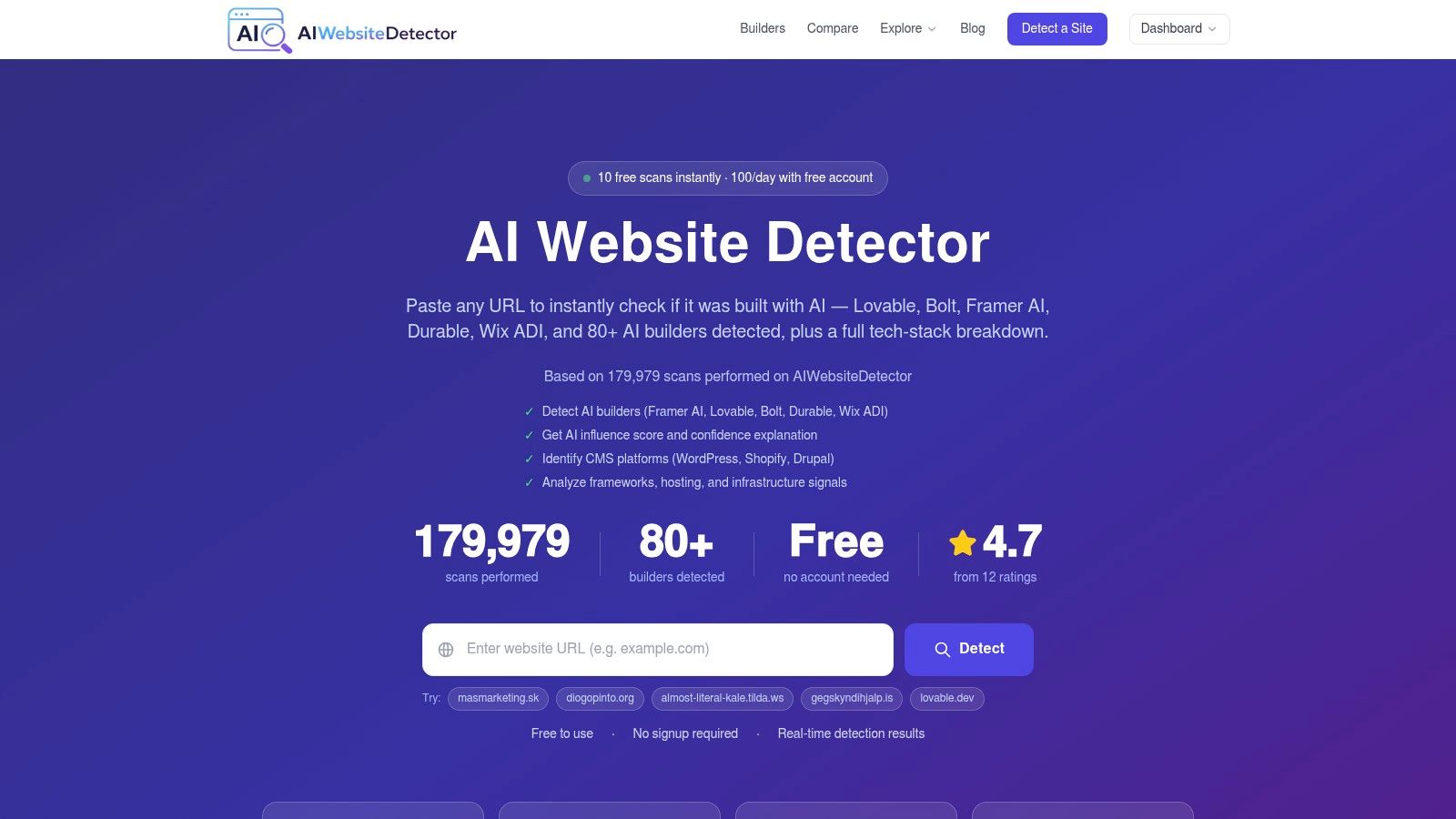
AI Website Detector is a strong first pass when you need more than a theme name. Paste a URL and it returns an explainable verdict, a signal breakdown, and a screenshot. That makes it useful when you need to confirm whether a site is a standard WordPress install, a heavily customized build, or a mixed stack with plugins and frameworks layered on top. The product's WordPress analysis focuses on themes, plugins, and the broader tech stack, which is the kind of context a basic wordpress theme identifier often misses.
It is especially useful when theme detection turns unclear. Custom CSS, child themes, and obfuscated asset paths can make a site look simple on the surface while hiding the implementation underneath. A detector that shows its reasoning is easier to trust than one that only prints a theme label and leaves the rest to guesswork.
Practical rule: if the theme answer affects research, procurement, or replication work, use a detector that explains why it reached the result.
AI Website Detector also fits real workflow pressure. It is available without signup for a limited number of scans, expands for registered users, and includes an API for repeat checks. That matters when you are comparing vendor claims, documenting a competitor's stack, or checking a portfolio site before a handoff. The trade-off is familiar. Evidence-led scanners can still lose certainty on obfuscated sites or unusual builds.
For WordPress-specific checks, the dedicated path is easy to use, and the internal WordPress detector page is the right companion reference when you want to stay focused on theme identification alone, AI Website Detector's WordPress theme detection page.
Why it stands out
- Explainable output: You get signal-by-signal evidence instead of a black-box label.
- Stack context: It looks beyond theme names and helps separate WordPress, frameworks, hosting, and tooling.
- Best for mixed research: Useful when theme detection is only one part of a larger website investigation.
- Trade-off: Heavily customized or obscured sites can reduce certainty, so manual confirmation still matters.
For teams that also care about commerce builds, WooCommerce tips from Helbling Digital Media can help connect theme identification to store planning and implementation choices.
Website: AI Website Detector
2. What WordPress Theme Is That?
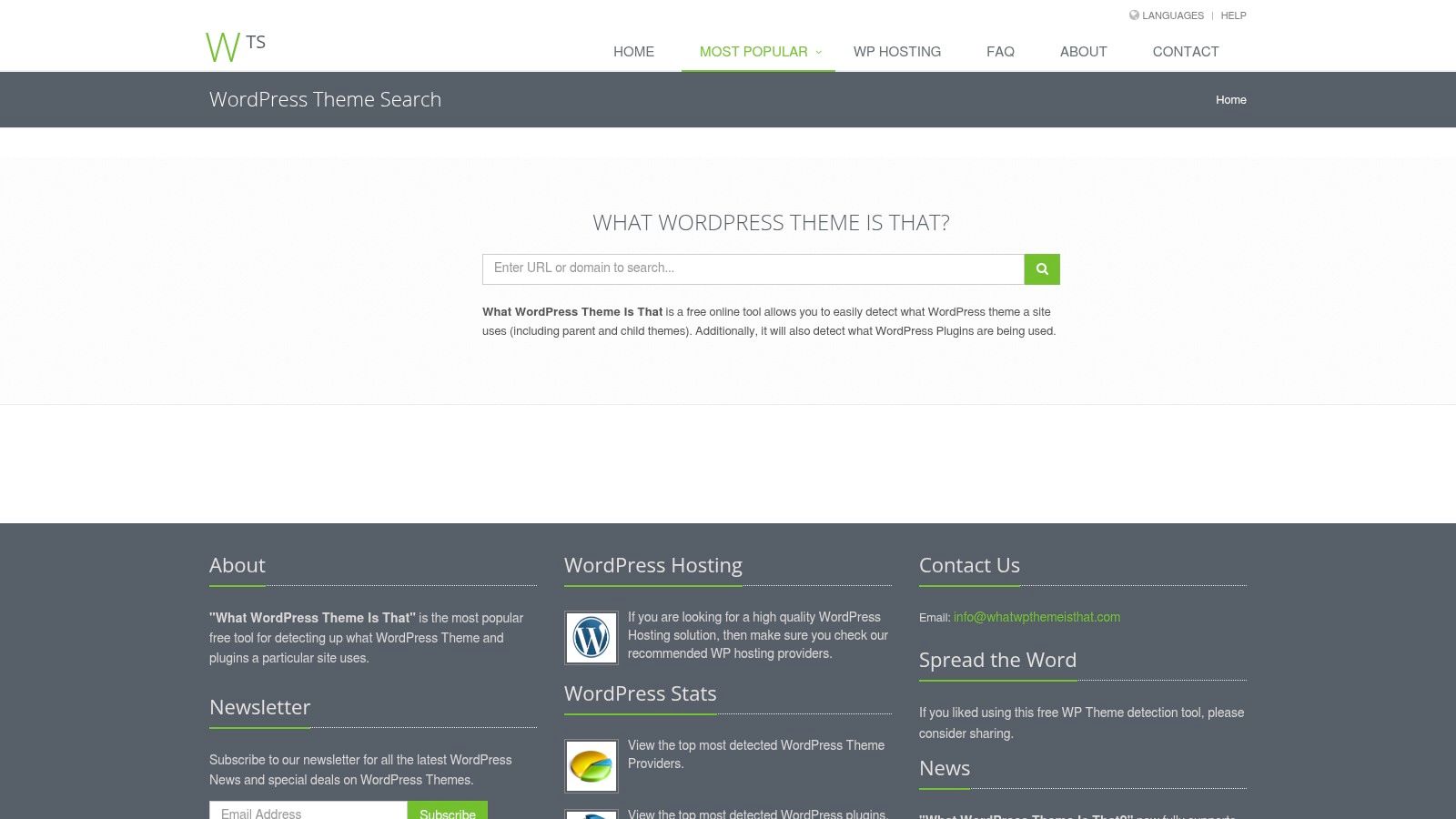
This is the classic single-purpose choice for fast WordPress theme lookups. Feed it a URL and it tries to identify the active theme, often along with parent and child theme clues when those details are exposed publicly. It's clean, direct, and familiar, which makes it a solid default when you just want the theme name without extra stack noise.
What makes it practical is also what limits it. It works best when the site leaves a visible trail in the source code, the same kind of trail that manual inspection looks for. When a site is customized or security-hardened, the answer can get thin or disappear completely, and that's where a second pass with a broader profiler or source inspection becomes necessary.
The internal reference for WordPress-specific lookup is worth keeping handy because the tool is useful precisely when you want to validate one site quickly, AI Website Detector's WordPress site detector.
A dedicated detector is great for confirmation. It's weaker as a research tool when you also need plugin context, hosting clues, or stack verification.
Best use cases
- Quick competitor checks: Ideal when you already suspect the site is using a recognizable WordPress theme.
- Simple validation: Good for confirming a hunch without opening DevTools.
- Theme-family visibility: Helpful when parent and child themes are still visible in public assets.
Main limitation
- Narrow scope: It's built for themes first, not broader technical profiling.
Website: What WordPress Theme Is That?
3. WPThemeDetector
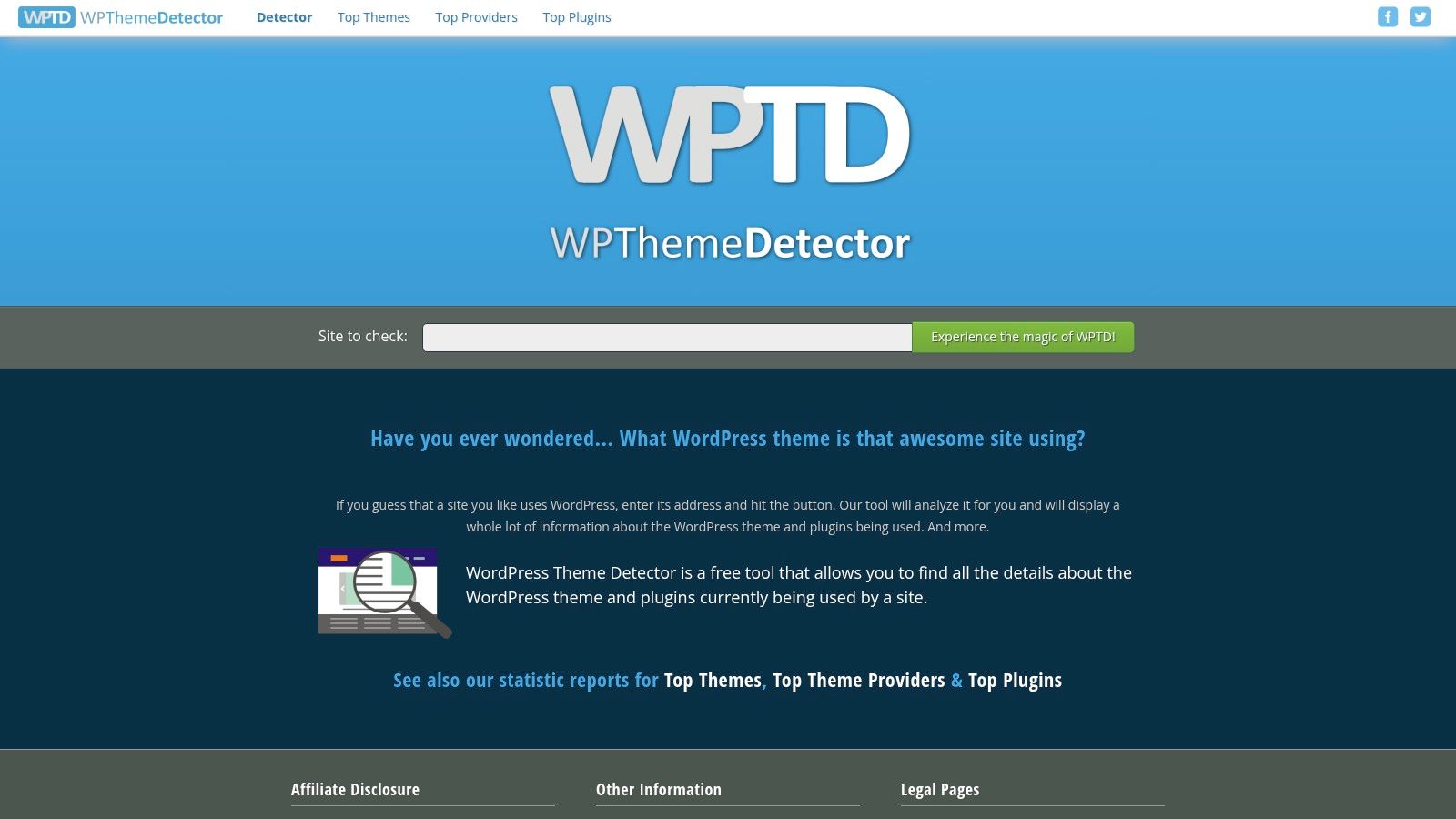
WPThemeDetector sits in the middle ground between a barebones lookup and a fuller analysis tool. It tries to identify the theme name, author, and version when those details are exposed, and it also makes a pass at active plugin hints. For developers, that combination is useful because the theme name alone rarely tells the whole story of how a site is built.
The other thing I like here is the extra research context. The product includes statistics pages for top themes, providers, and plugins, which makes it more useful when you're comparing what shows up repeatedly across the market instead of just checking one site. That doesn't replace manual verification, but it helps you move from a one-off answer to a broader pattern.
A tool like this works best on sites that haven't stripped their public assets. Once files are minified, renamed, or hidden behind unusual paths, any detector that relies on visible artifacts can lose precision. That's not a bug unique to this product; it's the nature of theme detection on the open web.
What it does well
- Theme metadata: Tries to surface the theme name, author, and version when present.
- Plugin hints: Gives you a better sense of the site's WordPress stack.
- Market context: The statistics pages are handy for competitive research.
Where it falls short
- Precision drops on customized assets: Renaming and minification can blur the result.
- WordPress focus only: It's less helpful if you also need broader technology profiling.
Website: WPThemeDetector
4. ScanWP
ScanWP is the kind of tool I open when I want a quick WordPress read and I expect plugins to matter. Theme detection is the main event, but the plugin snapshot often provides useful side evidence, especially on marketing sites where forms, sliders, caching, and page builders leave obvious traces in the public assets.
Its biggest strength is speed. The interface is simple enough that you don't waste time learning the tool, and that makes it good for ad hoc checks during audits or competitor reviews. It's the kind of detector you use when you already know the site is probably WordPress and you want a fast answer before diving into source code.
The trade-off is that opportunistic plugin detection is only as good as the public artifacts the site leaves behind. If the site has been stripped down, rewritten, or heavily cached, the tool can miss part of the picture. That's normal for this class of detector, but it means you should treat the result as a lead, not a final verdict.
Useful in practice for
- Competitive research: Fast lookups when you're comparing multiple sites.
- Plugin clues: Helpful if you need a rough snapshot of visible WordPress components.
- Low-friction checks: Good when you don't want a browser extension or local setup.
Not ideal for
- Hidden or hardened builds: Missing assets reduce accuracy.
- Broad stack analysis: It stays focused on WordPress signals.
Website: ScanWP
5. IsItWP WordPress Theme Detector

IsItWP is the beginner-friendly choice when someone wants to know whether a site runs WordPress before asking about the theme. That matters more than it sounds, because a lot of failed theme lookups are really failed CMS assumptions. If the site isn't WordPress, the theme detector question is already the wrong question.
The workflow is straightforward, which is why non-technical users keep coming back to it. It can identify the active theme and sometimes exposes host and plugin information when the site leaves public signals behind. That makes it a decent starter tool, especially for marketers or founders who don't want to open DevTools or read source code.
The limitation is depth. Once you move from “what theme is this?” to “how did they build this site?”, the output starts to feel generic. That's where a stronger stack profiler or manual verification becomes more useful.
Strengths
- Easy workflow: Clear for beginners and quick one-off checks.
- CMS confirmation: Saves time by separating WordPress sites from everything else.
- Basic stack hints: Can show some plugin and hosting information when visible.
Weaknesses
- Limited technical depth: Not built for deep developer analysis.
- Sensitive to obfuscation: Hardened sites can come back with little detail.
Website: IsItWP
6. Gochyu WordPress Theme Detector
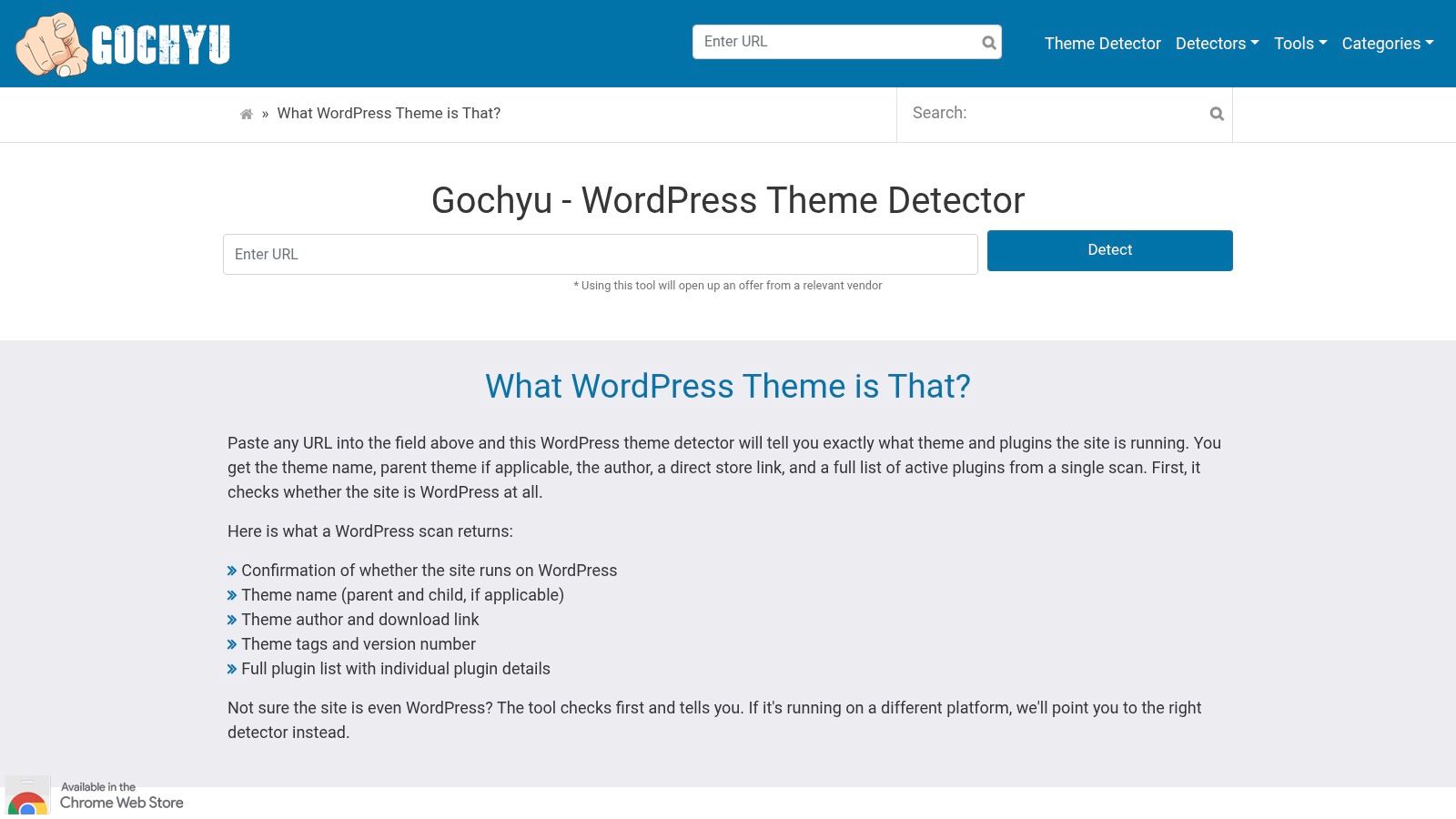
Gochyu is useful when WordPress is only one part of your research. It separates WordPress.org and WordPress.com behavior and checks common paths, REST endpoints, and asset patterns, which gives it a more technical feel than tools that only look for a single stylesheet clue. That makes it better suited to mixed research, especially when you're comparing multiple sites across different CMSs.
It also has a broader view of the web stack. If you're trying to understand whether a site is WordPress, Shopify, Drupal, Joomla, or Wix before drilling into the theme layer, that cross-platform perspective saves time. The extra explanation about how detection works is helpful too, because it makes the results easier to sanity-check.
Still, the core limitation stays the same, if public assets are renamed or minimized, plugin detection gets weaker. Cross-CMS breadth is valuable, but it can also make the interface feel busy if all you wanted was a fast theme answer.
Best fit
- Multi-stack research: Good when WordPress is only one candidate among several platforms.
- Detection transparency: The explanatory notes make results easier to interpret.
- WordPress.com awareness: Useful when platform differences matter.
Watch out for
- UI complexity: More options can create a learning curve.
- Public-signal dependence: Hidden assets still reduce confidence.
Website: Gochyu WordPress Detector
7. Kinsta Free WordPress Theme Detector
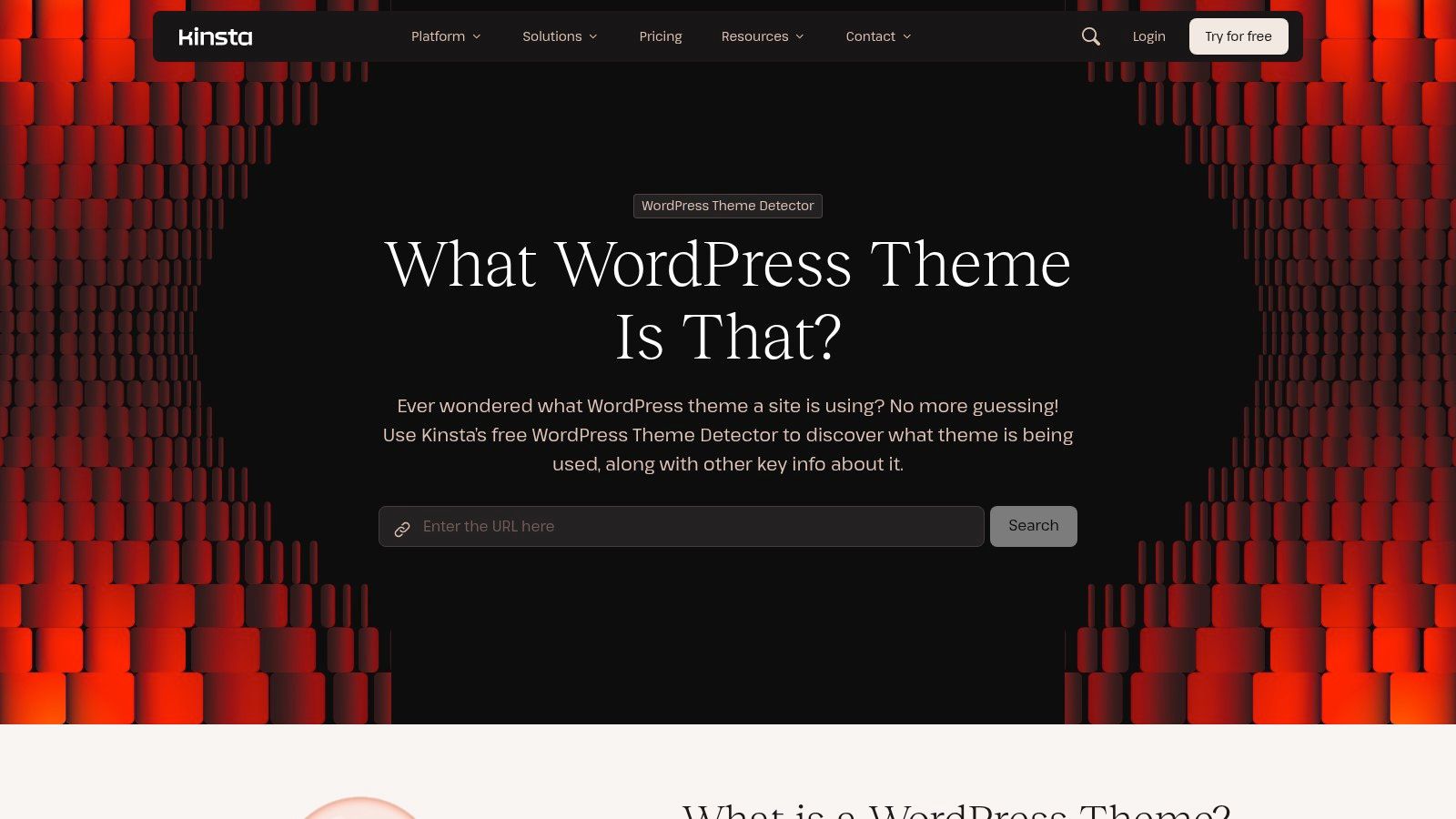
Kinsta's free detector is a practical one-off tool when you want a quick answer and you don't want to sign in anywhere. It confirms whether a site uses WordPress and then tries to identify the active theme with whatever basic information is publicly available. That makes it easy to use during research calls, vendor reviews, or casual checks.
The appeal is frictionlessness. You paste a URL, get a result, and move on. For many users, that's enough. The trade-off is that it stays narrow, so if you need plugin enumeration, hosting confirmation, or broader infrastructure clues, you'll need a different tool or manual inspection.
It's also not the right answer for obfuscated sites. If the theme is wrapped, renamed, or hidden behind aggressive caching, the tool can't magically infer what the public signals don't reveal. That's true of most simple detectors, and it's why seasoned developers treat them as fast validators rather than final authorities.
Good for
- No-sign-up scans: Quick checks without account setup.
- Theme validation: Useful when you already have a suspicion and want confirmation.
- Clean vendor tooling: Simple and easy to hand to non-technical teammates.
Less useful for
- Deep stack context: It doesn't try to be an all-in-one profiler.
- Hardened installations: Hidden clues limit the result.
Website: Kinsta WordPress Theme Detector
8. Wappalyzer

Wappalyzer is not a WordPress-only tool, and that's exactly why it belongs on this list. When a theme name matters less than the broader stack, Wappalyzer gives you useful context across CMSs, frameworks, analytics, CDNs, and other technologies. That makes it valuable for developers who want to know whether the site is running WordPress before they decide how deep to go on theme analysis.
Its browser extension is the main reason many people keep it installed. You get instant, in-context signals while browsing, which is faster than copying URLs into a separate analyzer. For larger research workflows, bulk lookups and CSV uploads make it more useful than a one-site checker.
The limitation is specialization. Wappalyzer can tell you a site uses WordPress, but it's not the tool I'd pick when the exact theme name is the only thing that matters. It shines as a broader profiler, then hands off to a dedicated theme detector or manual source inspection.
Best at
- Stack profiling: Strong on CMS, framework, and infrastructure context.
- Browser convenience: Fast signal access while you're already on the page.
- Research workflows: Bulk and CSV support suit larger audits.
Not best for
- Exact theme matching: It may still need manual corroboration.
- Single-purpose checks: Overkill if all you need is the theme slug.
Website: Wappalyzer
9. WhatRuns browser extension

WhatRuns works best as a browsing companion. It gives you one-click technology visibility right inside the browser, which is useful when you're moving through a competitor's site and want quick cues without switching tabs. The extension approach is convenient for ad hoc reconnaissance, and it pairs well with dedicated theme detectors when you need a second opinion.
Its weakness is the same one most browser tools share, results depend on the specific page route and whatever assets are loaded at that moment. If a theme's key files are lazy-loaded, minimized, or only visible on certain pages, the extension can miss them or report too little. That means you should use it for context, not certainty.
For a developer, that's still valuable. You can spot a CMS, notice a framework, and decide whether the site is worth a deeper look with source inspection or a specialized detector.
Good for
- Browser-first workflows: Fast insight without leaving the page.
- Broader context: Useful alongside WordPress-specific detectors.
- Lightweight use: Easy to toggle on and off.
Drawback
- Inconsistent theme naming: It's not always focused on the exact theme label.
Website: WhatRuns
10. WPBeginner WordPress Theme Detector
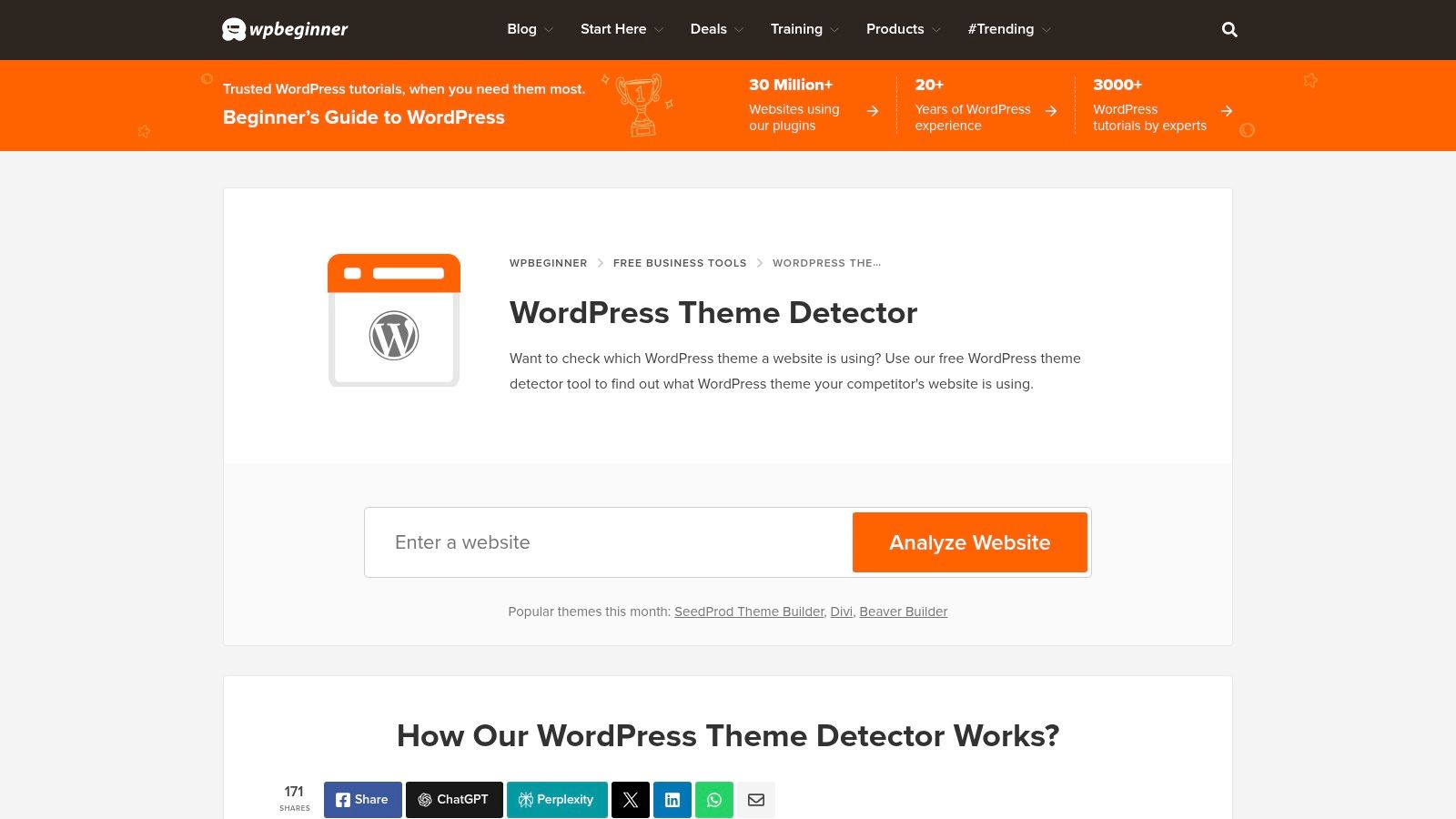
WPBeginner's detector is straightforward and easy to trust if you already use the brand's WordPress tutorials. It's built for simple theme confirmation, and it often points users toward the theme's public page when the site exposes one. That makes it a decent bridge between curiosity and action, especially for people who want to identify a theme and then inspect the theme itself.
The upside is accessibility. The interface is simple enough for a beginner, but it still solves a real task quickly. The downside is that it doesn't try to be a deep stack profiler, so once the site has been customized or hardened, the detector can come back empty or vague.
That's not a weakness unique to WPBeginner, it's a sign you've hit the edge of public-source theme detection. At that point, the right next move is manual inspection.
Best for
- Beginner-friendly lookups: Clear and easy to use.
- Quick validation: Useful when you want a second opinion on a theme guess.
- Follow-up research: Helpful when the theme page is publicly linked.
Limits
- No deep plugin inventory: It stays focused on the theme.
- Custom builds can hide results: Obfuscation lowers usefulness.
Website: WPBeginner WordPress Theme Detector
11. Manual Method Inspecting the Page Source
The fastest manual check is still the one developers learned years ago, open the page source and search for wp-content/themes/. WordPress themes usually expose a stylesheet path such as /wp-content/themes/theme-name/style.css, and that slug often gives away the active theme folder immediately. In many cases, the style.css header contains the Theme Name, Author, and Version, which is exactly the metadata you need for a reliable ID.
The logic behind this method is simple. WordPress themes publish identifying details in a predictable place, and public pages often load those assets directly. That's why manual source inspection remains one of the most technically reliable methods when the site hasn't been intentionally obscured.
If the source shows a child theme folder, don't stop at the first match. The visible asset path can point to a child theme while the real design origin still lives in the parent theme.
For a quick walkthrough page that stays focused on WordPress detection, keep the direct theme page close at hand, AI Website Detector's WordPress theme identifier. It's useful as a companion reference when you want to compare a tool result against what the source exposes.
What to look for
/wp-content/themes/paths: These usually point to the active theme folder.style.cssheaders: Often reveal the theme name, author, and version.- Child theme references: A separate folder can indicate a child theme is active.
What can go wrong
- Custom or hardened sites: The source may not reveal the original theme.
- Aggressive optimization: Minified assets can make names less obvious.
12. Advanced Method Using Browser Developer Tools
Developer Tools give you the next layer of proof when source inspection isn't enough. Open the inspector, check the <body> classes, and look for theme hints such as a class naming pattern that includes the theme slug. Then move to the Network tab, filter by CSS, reload the page, and inspect which stylesheet files are being loaded. Those file paths often show the theme directory even when the page source is noisy.
This approach is especially useful on sites that use block themes, page builders, or a lot of custom CSS. In those setups, the visible design can hide the underlying implementation, so body classes and network-loaded stylesheets provide a better signal than a quick theme lookup alone. It's also the method I trust most when I'm validating a tool result before I quote it in client work.
If you want a broader stack check after you confirm the theme, the companion WordPress plugin detection page is worth opening, AI Website Detector's WordPress plugin detection page. That's useful when the theme name is only half the story and you need to see what else is shaping the front end.
Practical insight: the Network tab often tells you more truth than the rendered page. The page can be polished, but the stylesheet paths usually still expose the build.
When this method wins: custom themes, child themes, and sites with enough public assets to trace the implementation.
For debugging workflows that already rely on the browser console, these faster site debugging tips can make this kind of inspection less tedious.
12 WordPress Theme Detectors, Comparison
| Tool | Core focus & features | Detection depth & UX ★ | Price & value 💰 | Target audience 👥 | Unique selling points ✨ |
|---|---|---|---|---|---|
| AI Website Detector 🏆 | AI vs human build scanner; AI probability, signal‑by‑signal breakdown, tech‑stack & screenshots; fingerprints 80+ builders | ★★★★★, real‑time, explainable scores, saved results, no‑signup scans | 💰 Free tier (10/30m; 100/day w/ acc); API plans from €12/mo | 👥 Founders, PMs, dev teams, agencies, marketers, researchers | ✨ Bundle‑artifact scanning, "vibe‑coded" heuristics, builder profiles, replication guides, developer utilities |
| What WordPress Theme Is That? | Theme (+ parent/child) & visible plugin detector | ★★★☆☆, simple, reliable when assets visible | 💰 Free | 👥 WordPress users, casual researchers | ✨ Parent/child theme detection, theme author/home links |
| WPThemeDetector | Theme detection + plugin hints + market stats | ★★★☆☆, good theme detail when exposed | 💰 Free | 👥 WP devs, market researchers | ✨ Top Themes/Providers/Plugins stats pages |
| ScanWP | Theme + plugin discovery for quick checks | ★★★☆☆, fast, opportunistic plugin finds | 💰 Free | 👥 Marketers, competitors analysts | ✨ Plugin snapshot focus with quick links |
| IsItWP – WordPress Theme Detector | Confirms WP then reports theme, host, some plugins | ★★★☆☆, very approachable, basic depth | 💰 Free | 👥 Beginners, site owners | ✨ One‑step WP confirmation + hosting info |
| Gochyu – WordPress Theme Detector | WP.org vs WP.com checks; themes/plugins; multi‑CMS support | ★★★★☆, cross‑CMS signals, explanatory notes | 💰 Free | 👥 Researchers needing multi‑stack views | ✨ Handles WP.org/.com; supports Shopify, Drupal, Joomla, Wix |
| Kinsta – Free WordPress Theme Detector | Zero‑signup WP detector; active theme info | ★★★☆☆, lightweight, dependable uptime | 💰 Free (no sign‑up) | 👥 Quick researchers, due diligence | ✨ Frictionless scans backed by a hosting vendor |
| Wappalyzer | Broad tech profiler: CMS, frameworks, analytics, CDNs | ★★★★☆, rich stack context, browser extension & bulk CSV | 💰 Free extension; paid data/API plans | 👥 Developers, analysts, researchers | ✨ Instant on‑page extension, bulk lookups, CSV exports |
| WhatRuns (extension) | In‑browser tech identification (CMS, libs, analytics) | ★★★☆☆, convenient in‑context detection | 💰 Free | 👥 Ad‑hoc researchers, marketers | ✨ One‑click insights while browsing |
| WPBeginner – Theme Detector | Simple theme lookup with tutorials/links | ★★★☆☆, beginner‑friendly, limited depth | 💰 Free | 👥 Non‑technical users, learners | ✨ Links to theme source + WP resources |
| Manual Method: Page Source | Inspect style.css and headers in page source | ★★★★☆, direct, reliable if not obfuscated | 💰 Free | 👥 Technical users | ✨ Direct evidence from source files; no tools required |
| Advanced Method: DevTools | Use DevTools (body classes, Network CSS) for deeper probe | ★★★★☆, thorough when assets load/unminified | 💰 Free | 👥 Developers, auditors | ✨ Network/CSS inspection, body classes, live debugging |
From Detection to Action Choosing Your Method
The right WordPress theme identifier depends on what you need to prove. If you want the fastest broad answer, start with a tool that can tell you whether the site is WordPress, what theme it appears to use, and what else is running around it. If you need a clean theme-only lookup, a dedicated detector is enough. If the site looks customized, use manual inspection to confirm the result before you trust it.
In practice, the most dependable workflow is a sequence, not a single click. Start with a scanner that gives you context, then verify with the page source, then use Developer Tools if the asset path looks inconsistent. That sequence works because WordPress theme detection is usually about reconstructing a public footprint, not reading a hidden database record. The evidence is often there, but you need the right tool to surface it.
The broader market also explains why these tools keep getting better. A report on the WordPress Theme Detector segment values the market at US$420 million in 2024 and projects it to reach US$764 million by 2031, with a 9.5% CAGR (market report). That projection lines up with what practitioners already know, teams want faster competitive analysis, faster vendor checks, and faster stack verification. The demand is real because the work is real.
There's also a security angle that experienced developers shouldn't ignore. Theme names are often visible because themes expose metadata in style.css and asset paths, but that same visibility can leak useful information during audits. A single vulnerable theme can expose content, as the Context Blog case shows, where a WordPress theme flaw allowed unauthorized access to protected posts before the fix in version 1.2.6 (SentinelOne's CVE summary). That's a reminder that theme identification isn't just curiosity, it's part of responsible site assessment.
Use the lightest tool that answers the question, then escalate only when needed. For most checks, that means a detector plus source review. For harder cases, it means DevTools, page source, and a willingness to accept that some sites won't reveal the original theme cleanly.
If you want a WordPress theme detector that does more than guess a name, try AI Website Detector. It shows the signals behind its result, so you can confirm the theme, see the surrounding stack, and understand when a site is using a child theme or heavier customization. That makes it a practical next step whenever a simple lookup isn't enough.