How to Use a WordPress Theme Finder Like a Pro
You're on a client call when someone shares a WordPress site with an unusually polished layout. The typography is restrained, the spacing is deliberate, and the homepage feels expensive. Before the conversation moves on, you're already asking the practical question: which theme is this?
A WordPress theme finder can answer that question quickly, but a single theme name rarely explains what you're seeing. The visible result may come from a parent theme, a child theme, page-builder templates, custom CSS, block patterns, JavaScript, and plugin-generated components working together. Finding the theme is useful. Understanding the theme stack is what lets you reproduce, evaluate, or safely replace the site.
Table of Contents
- Why People Hunt for WordPress Themes in the First Place
- Reading a Site's Source Code and Devtools
- Manual Inspection Versus Automated WordPress Theme Finders
- Decoding the Theme Stack Beyond a Single Label
- What the WordPress Theme Directory Tells You
- Choosing, Licensing, or Replicating a Detected Theme
- Common Theme Detection Pitfalls and a Final Checklist
Why People Hunt for WordPress Themes in the First Place
Theme hunting usually starts with a visual reaction, but the underlying reason is practical. A designer may be researching a competitor's site, an agency may need to match an existing client identity, or a founder may be comparing a premium theme with a free alternative before committing to a build. Developers also inspect unfamiliar sites for layout ideas, template conventions, and clues about how a particular experience was assembled.
The mistake is treating the theme name as ownership of the entire design. Two sites can use the same parent theme and still look unrelated because one relies on a child theme, another uses a page builder, and a third has extensive custom CSS. The theme may provide the basic templates while plugins handle forms, commerce, events, memberships, or other visible features.
Practical rule: use a WordPress theme finder to form a hypothesis, not to close the investigation.
That distinction matters when you're preparing a proposal. If a client wants a site that resembles an existing publication, identifying the parent theme might reveal the starting point, but it won't tell you how much custom work went into the header, archive templates, responsive behavior, or content modules. A detector that reports only the parent theme can make a custom build look like an off-the-shelf installation.
Before choosing a theme for a new project, it helps to evaluate structure, support, update practices, accessibility, and the relationship between design and functionality. This guide to how to pick a WordPress theme is useful background because it treats selection as more than a screenshot comparison.
The official WordPress directory has supported theme discovery for years. WordPress announced it as the official place to find and browse themes on July 18, 2008 in its theme directory announcement. Today, the directory remains a large discovery surface, but its visible catalog changes as themes become stale or disappear from public search.
For reverse engineering, the question is therefore broader: which theme files are active, which parent does a child theme inherit from, which assets belong to plugins, and which visible details are custom? That stack-reading approach produces a much more reliable answer than a one-click label. A useful overview of detecting a WordPress website can supplement the investigation, but the browser still provides the final evidence.
Reading a Site's Source Code and Devtools
Manual inspection is the dependable fallback when a detector gives you a vague result. You don't need access to the WordPress dashboard. A public page often exposes enough asset information in its HTML, stylesheet URLs, and browser requests to identify the active theme or at least narrow the possibilities.
Start with the page source
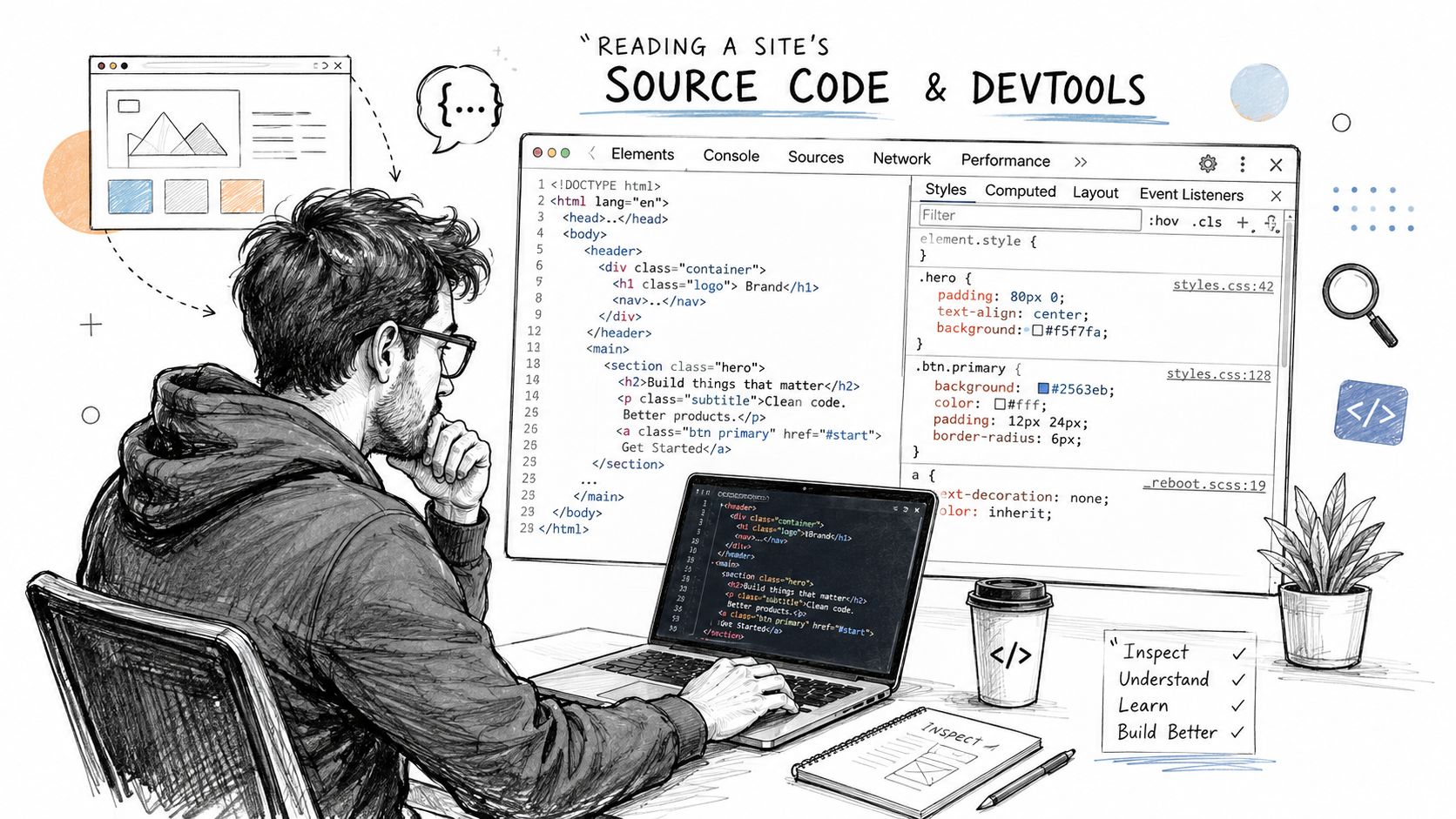
Right-click the page and choose View Page Source, or open Devtools with the browser menu. Search for:
/wp-content/themes/, which can expose a theme folder slug in stylesheet, script, image, or font URLs./wp-includes/, which is a strong WordPress fingerprint, although it identifies the platform rather than the theme.- Generator metadata, where present, which may identify WordPress or related software.
A typical asset path looks like /wp-content/themes/theme-name/style.css. The folder name is a useful clue, but it isn't proof. Developers rename folders, create forks, and rewrite asset paths through caching or deployment systems.
Follow the stylesheet
Open the stylesheet URL directly. WordPress themes commonly expose a header comment containing fields such as Theme Name, Theme URI, Author, Version, and Description. The standardized theme structure is why this method works well on public themes distributed through the WordPress ecosystem, as described in the WordPress theme detection workflow.
Then inspect the page's loaded assets in the Network tab. Filter by CSS, reload the page, and examine the first theme-related stylesheet. The DOM can reveal the same paths through <link> elements, while script handles and inline styles can expose additional customization.
Look for child themes and hidden layers
A child theme often has its own directory and style.css. Open that file and look for a Template: header pointing to the parent theme slug. If the page loads assets from both a child directory and another theme directory, that relationship becomes more likely.
The generator tag is optional and many themes remove it, so its absence proves nothing. Desktop Chrome or Firefox is preferable to a mobile-only browser because responsive delivery and user-agent-specific caching can hide useful requests. Manual inspection also catches custom directory names and altered slugs that automated services may not recognize.
Manual Inspection Versus Automated WordPress Theme Finders
Automated finders are valuable when the question is simple and the site is public. They can scan a page, match recognizable asset paths, and present theme, plugin, hosting, or CMS clues in a readable report. Tools such as WhatWPThemeIsThat, WPThemeDetector, Kinsta's checker, and ScanWP fit that quick-reconnaissance role.
Manual Devtools work takes longer, but it gives you control over the evidence. You can open the actual stylesheet, follow enqueued assets, compare parent and child directories, and distinguish a real theme signal from a generic filename. A detector may identify only the parent theme, especially when a child theme owns the visible styles.
The same trade-off appears in other browser-identification tasks. This discussion of manual font checks versus automated scanning is a useful analogy: automation is convenient, while manual verification is stronger when the result affects a real decision.
Comparison table
| Criterion | Manual Devtools | Automated Detector |
|---|---|---|
| Speed | Slower, especially across multiple pages | Fast for an initial public-site check |
| Evidence | Exposes source paths, stylesheet headers, and loaded assets | Matches known fingerprints and summarizes findings |
| Custom themes | More likely to reveal renamed or bespoke directories | May return limited or no theme data |
| Child themes | Can confirm a Template: relationship |
May report only the parent |
| Privacy | Inspection happens in your browser | Depends on the service and its scanning process |
| Technical skill | Requires source-reading and pattern recognition | Accessible to non-developers |
| Cached or rewritten assets | Lets you investigate alternate clues | Can fail when standard paths are hidden |
| Client or staging work | Useful when you can access the environment | Usually limited to publicly reachable pages |
Detectors are excellent for a quick competitive check on a marketing site. Manual inspection is stronger when you're analyzing a staging environment, a logged-in page, or a site whose code has been heavily modified. A WordPress theme identifier can help organize the first pass, but the practical workflow is complementary: detectors provide speed, Devtools provides verification.
Neither method can reveal private server-side code from a public page. If the site hides asset paths, serves a fully custom theme, or uses aggressive caching, the honest result may be partial identification rather than a confident theme name.
Decoding the Theme Stack Beyond a Single Label
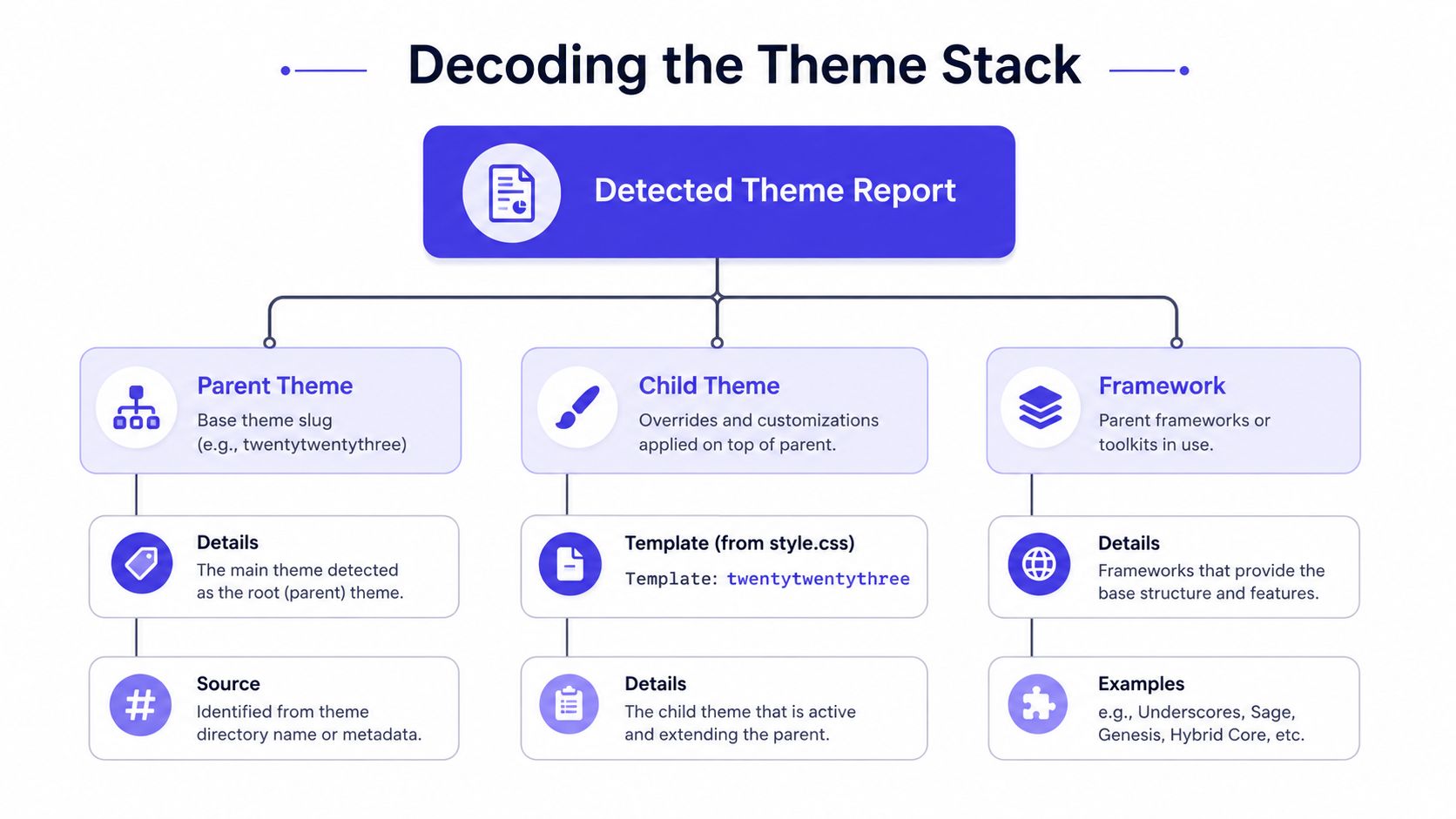
Treat a detector report as raw material. The useful question isn't only “what theme is this?” It's “which layer is responsible for each part of the experience?”
Start with the reported slug. If it matches a public theme, open its style.css and compare the Theme Name, Author, and Version fields with the detector result. Then check the actual asset paths. A report may call the site “Theme A,” while the page loads CSS from /wp-content/themes/client-child/, which immediately changes the interpretation.
Separate parent, child, and framework
A Template: line in the child stylesheet is the clearest relationship signal. The parent theme supplies the base templates and styles, while the child theme can override files, add functions, and enqueue additional assets without editing the parent directly. A framework may sit underneath that arrangement, providing reusable foundations that make the reported theme name less informative than it first appears.
Look for visible signs of customization:
- Version mismatch: the stylesheet version may lag behind the upstream release, suggesting a fork or long-maintained customization.
- Custom directories: paths resembling
/custom-css/or/uploads/customize/may indicate stored design overrides. - CSS variables: a large set of custom properties can reveal a design system layered over the parent.
- Extra JavaScript: scripts absent from the stock theme bundle often point to bespoke interactions or plugin features.
- Template-specific assets: a pricing page, directory, or event interface may load files unrelated to the theme itself.
Plugin overlap causes frequent misclassification. A theme may appear to provide a booking form, product grid, event calendar, or membership panel when a plugin generates that markup and styling. Test those assumptions on a staging copy by disabling suspected plugins one at a time, then compare the affected templates and assets.
A detected parent theme explains the skeleton. It doesn't explain the furniture, wiring, or rooms added later.
Keep a three-layer mental model: parent theme, child theme, and behavioral additions. The third layer includes plugins, builders, custom blocks, snippets, and server-side modifications. This website tech-stack analysis guide is useful when you need to widen the investigation beyond the theme directory and examine the surrounding implementation.
What the WordPress Theme Directory Tells You
The official directory adds context that a detector can't provide from one page load. WordPress documentation describes it as a resource used by millions of users worldwide, with filters for layout, subject, and specific features in its theme documentation. That makes the directory useful for validating a detected slug, comparing alternatives, and checking whether the theme is part of the reviewed WordPress ecosystem.
The visible catalog isn't a permanent inventory. As of August 19, 2026, the directory page showed 8,468 themes, while a separate ecosystem snapshot counted 15,041 themes in the repository and estimated that only about 8,490 were publicly browseable or searchable because 6,551 themes, or 44%, had gone at least two years without updates. Those figures show why a theme may remain reachable by direct link or API while no longer appearing in ordinary discovery.
Read the signals, not just the listing
| Directory Field | What It Signals | What to Watch For |
|---|---|---|
| Theme name and slug | Whether the detected identity matches a public listing | Renamed folders, forks, and commercial variants |
| Active installations | Adoption and install concentration | Popularity doesn't guarantee current maintenance |
| Last updated date | Maintenance freshness | Long gaps can indicate abandonment |
| Ratings and support | User experience and unresolved problems | Read the discussion rather than trusting a score alone |
| Compatibility information | Declared WordPress and PHP support | Verify against the project's actual environment |
| Review status | Compliance with directory requirements | Absence from the directory isn't proof of poor quality |
The directory's review process matters because approval depends on reviewer checks, not appearance alone. The official theme review guidelines cover areas such as licensing, copyright, privacy, accessibility, code quality, functionality, plugins, naming, internationalization, file requirements, and theme-specific requirements.
The rules also create a useful distinction between a design theme and a bundled application. Official release guidance says themes must not include plugins or non-design functionality such as forms, and it disallows shortcodes, custom post types, and custom blocks in themes. A detected feature may therefore belong to an adjacent plugin or custom implementation.
Commercial themes won't necessarily appear in the free directory. A missing match can mean a premium product, a private agency theme, a renamed fork, or a heavily customized build. Treat a directory match as a trust signal, not a guarantee. Treat no match as a reason to verify the vendor, licensing, update path, and source before adopting anything.
Choosing, Licensing, or Replicating a Detected Theme
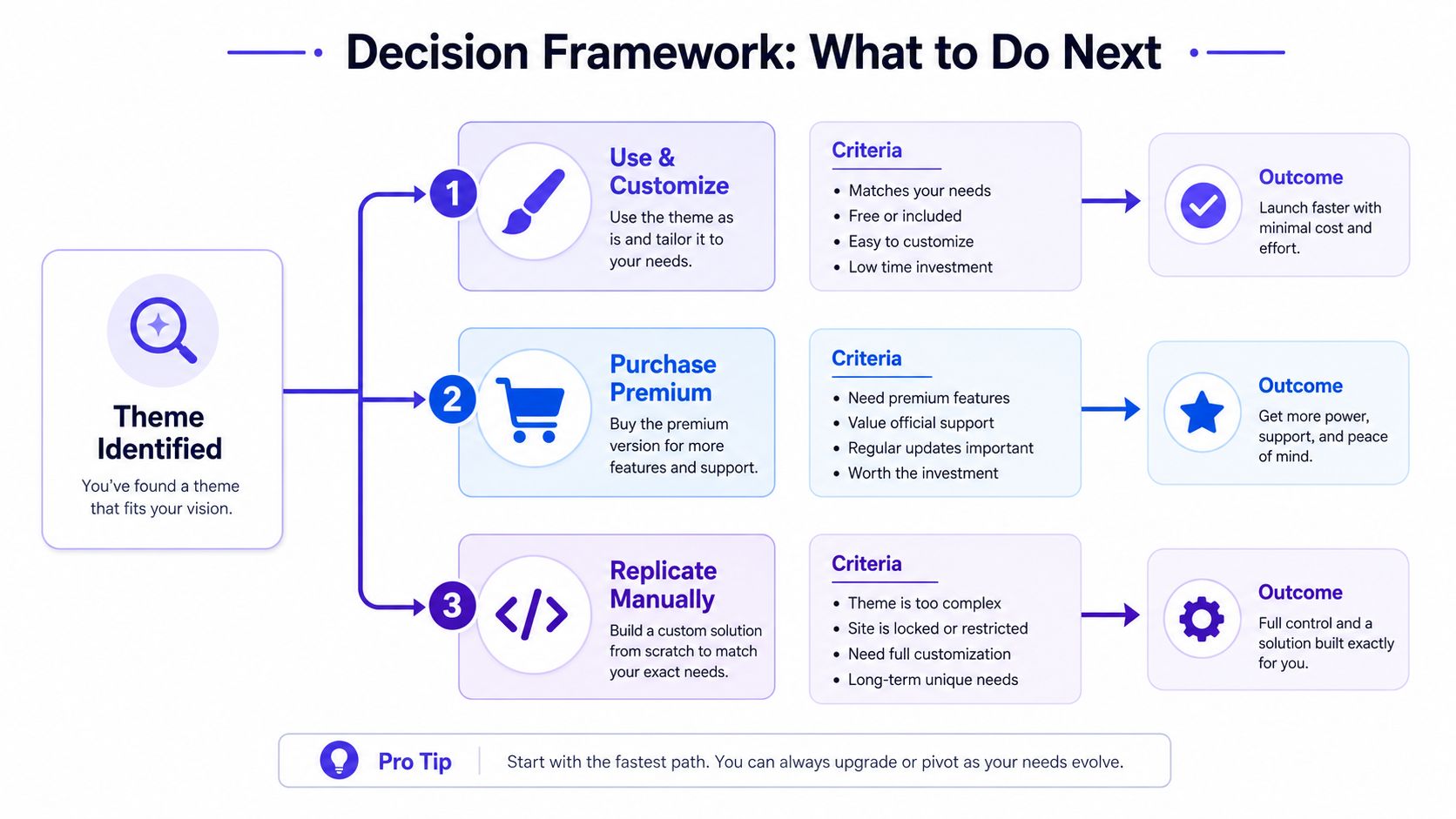
Once you've identified the stack, choose an action based on the site you're trying to build, not on the theme name alone. There are three sensible paths.
Use and customize the exact theme when its templates, support model, and license fit the project. Download it from the original vendor or the official directory, confirm the license terms, list required plugins, and test the current version on a staging site. For commerce projects, a resource that helps you compare WooCommerce themes for UK shops can add useful selection criteria beyond visual similarity.
Purchase the premium product when vendor support, proprietary modules, documentation, or bundled updates justify the dependency. Check whether the license covers the intended sites, whether renewal affects updates, and whether the design depends on a page builder that the team is prepared to maintain.
Replicate the visible system manually when the original site is heavily customized, locked behind a private implementation, or built around functionality you don't need. Recreate the layout, typography, spacing, and components you require. Don't copy protected assets or vendor code, and don't assume a screenshot grants permission to reproduce the entire design.
A practical cost and time matrix
| Route | Solo founder trade-off | Agency trade-off |
|---|---|---|
| Use and customize | Lower build effort, more dependency on theme conventions | Faster delivery, but support and future compatibility need documentation |
| Purchase premium | Access to support and packaged features, recurring vendor dependence | Efficient for repeatable builds, with licensing to track across clients |
| Replicate manually | More upfront implementation, greater control over the final system | Higher discovery and build scope, but clearer ownership of custom work |
Content migration can dominate the schedule regardless of the route. Audit templates, reusable blocks, forms, commerce components, and SEO settings before promising a visual match. Identify first, decide second, license always.
Common Theme Detection Pitfalls and a Final Checklist
A theme name isn't the same as ownership of the look. Theme lockers, page builders, custom post types, block modules, and CSS overrides can make two installations with the same parent theme look nothing alike. Generic asset names, stale detector caches, renamed folders, and reseller rebranding can also create false positives.
Verify the report before you spend time reproducing the design. Open the stylesheet, compare script handles and loaded assets, confirm the parent-child relationship, inspect the visible customizations, and check licensing directly with the vendor. Third-party mirrors aren't reliable evidence of permission.
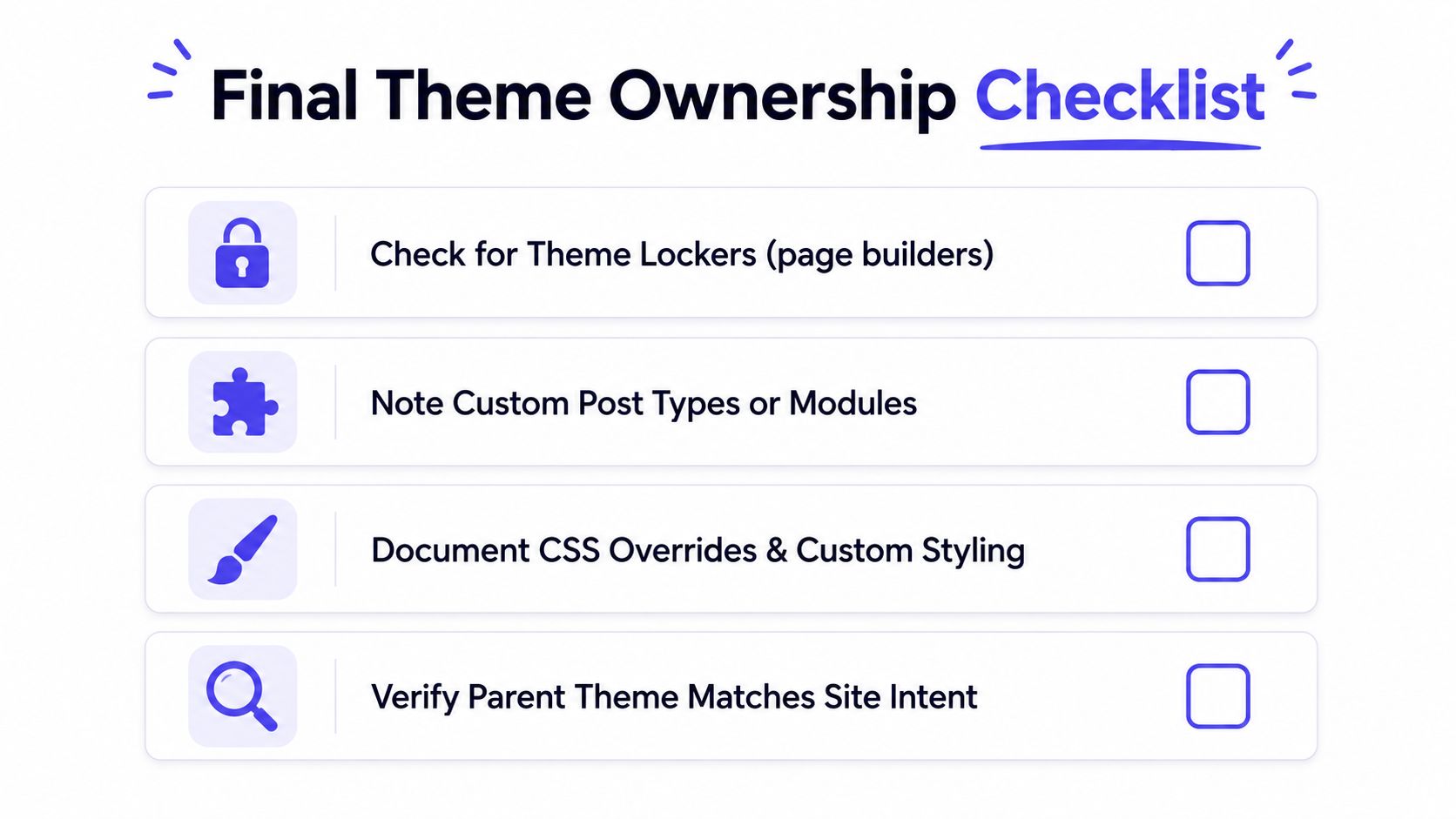
Use this five-point audit:
- Match the
style.cssheader: Confirm the reported name, author, and version. - Cross-check enqueued assets: Look for CSS and JavaScript from child themes, plugins, and custom directories.
- Confirm inheritance: Find the
Template:line or equivalent parent relationship. - Inspect visible customization: Separate parent styles from builder templates and custom overrides.
- Verify the license: Check the original vendor or official directory before adoption.
If a step fails, the site may be modified, custom-built, renamed, or no longer publicly available. AI Website Detector can identify WordPress and analyze theme and plugin signals alongside broader technology clues, so visit AI Website Detector to scan a site and review the evidence before deciding whether to copy, customize, or rebuild its stack. Use the result as an informed starting point, then confirm important findings in Devtools and the original licensing source.