10 Best Website CMS Detector Tools for 2026
You're staring at a competitor's homepage, and the design feels too clean to be random. The typography, the motion, the forms, the checkout flow, even the little quirks in the footer all suggest there's a recognizable stack underneath, and a good website CMS detector can tell you what it is without guesswork. That matters whether you're checking a rival, validating a vendor's claims, or learning how a site was built so you can ship something smarter yourself. The right tool doesn't just name a CMS, it shows the evidence, and that's the difference between a hunch and useful intelligence.
If you're comparing modern site builders, classic CMSs, and AI-assisted builds, the fastest route is a tool that reads multiple signals at once, not one that leans on a single clue. AI is changing how sites get built, but the old fingerprints still matter, from WordPress paths to Shopify assets to framework-level artifacts. For a broader view of how AI systems interpret a site, it also helps to understand how AI engines read your website.
Table of Contents
- 1. AI Website Detector
- 3. BuiltWith
- 4. WhatCMS
- 4. WhatCMS
- 5. Gochyu
- 6. WhatRuns
- 7. W3Techs Site Info
- 8. Netcraft Site Report
- 9. SimilarTech
- 10. WebTechSurvey
- Top 10 Website CMS Detector Comparison
- Choosing the Right Website Detector for Your Needs
1. AI Website Detector
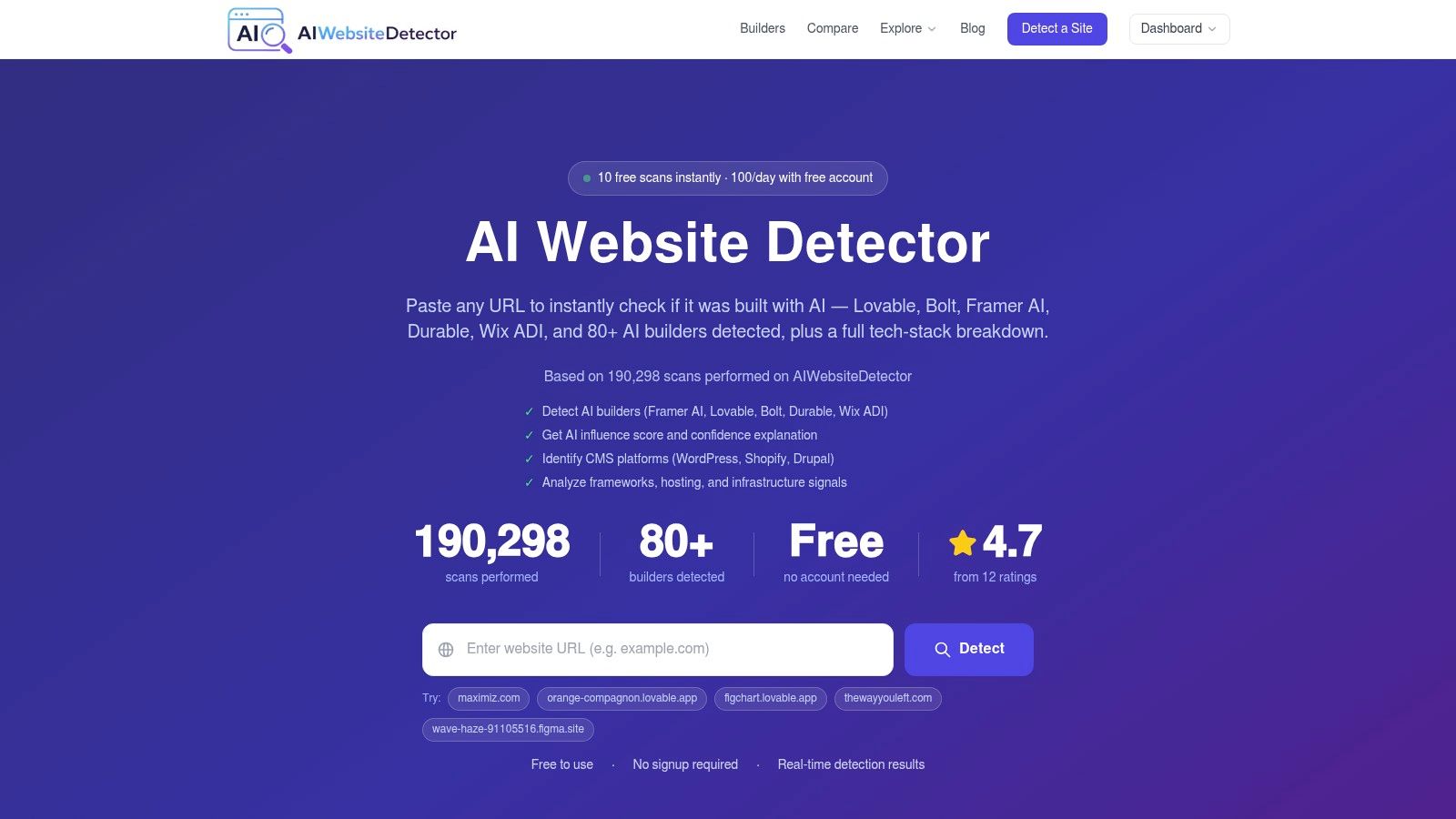
A lot of detectors can name a CMS. Fewer can tell you whether the site was assembled with an AI builder, an AI-assisted workflow, or a traditional stack that only looks modern on the surface. AI Website Detector is the tool I reach for when that distinction matters, because it combines CMS detection with builder fingerprints, bundle artifacts, and a readable verdict instead of a vague score. Its documentation says it can identify CMS platforms like WordPress, Shopify, and Drupal from signals such as HTML, scripts, CDN patterns, and HTTP headers, which fits the core job of a practical website CMS detector internal guide on detecting AI-built websites.
Why it stands out
The useful part is not just that it scans. It explains what matched, which is exactly what you want when you are validating a competitor site or checking whether an agency's “custom build” claim holds up. The platform also covers modern build patterns, so it is not limited to classic CMS fingerprints.
That matters because site detection has to work across noisy reality, not a clean demo page. CMS detection is a multi-signal problem, and the broader market is large enough that automated fingerprinting makes sense at scale, especially when identifiable CMS usage is concentrated in a few families as shown in the CMS market snapshot and industry guidance on multi-signal detection.
Practical rule: if a tool cannot show you the signals behind the verdict, treat the result as a lead, not a conclusion.
The product also bundles adjacent utilities, including website tech stack detection, hosting checks, sitemap and robots.txt analysis, and WordPress-specific checks, so you can move from “what is this site?” to “how is this site put together?” without hopping between tabs. For agencies and researchers, that saves time and reduces interpretation errors.
Best use cases
This is the right fit when you need more than a CMS label. Use it for competitor teardown, portfolio verification, builder research, or any workflow where AI influence is part of the question. It also works well when you want to compare traditional CMS usage with AI-native or AI-augmented builds in the same scan.
A few details make it especially practical:
- Signal-by-signal evidence: You get the reasoning, not just the verdict.
- Modern builder coverage: It looks beyond WordPress-style fingerprints.
- Workflow-friendly output: Screenshots and structured results make client reporting easier.
The trade-off is the same one you see in any serious detector, heuristics are not certainty on every site. Still, when the goal is to understand both the CMS and the build style behind a page, this is a strong starting point.
3. BuiltWith
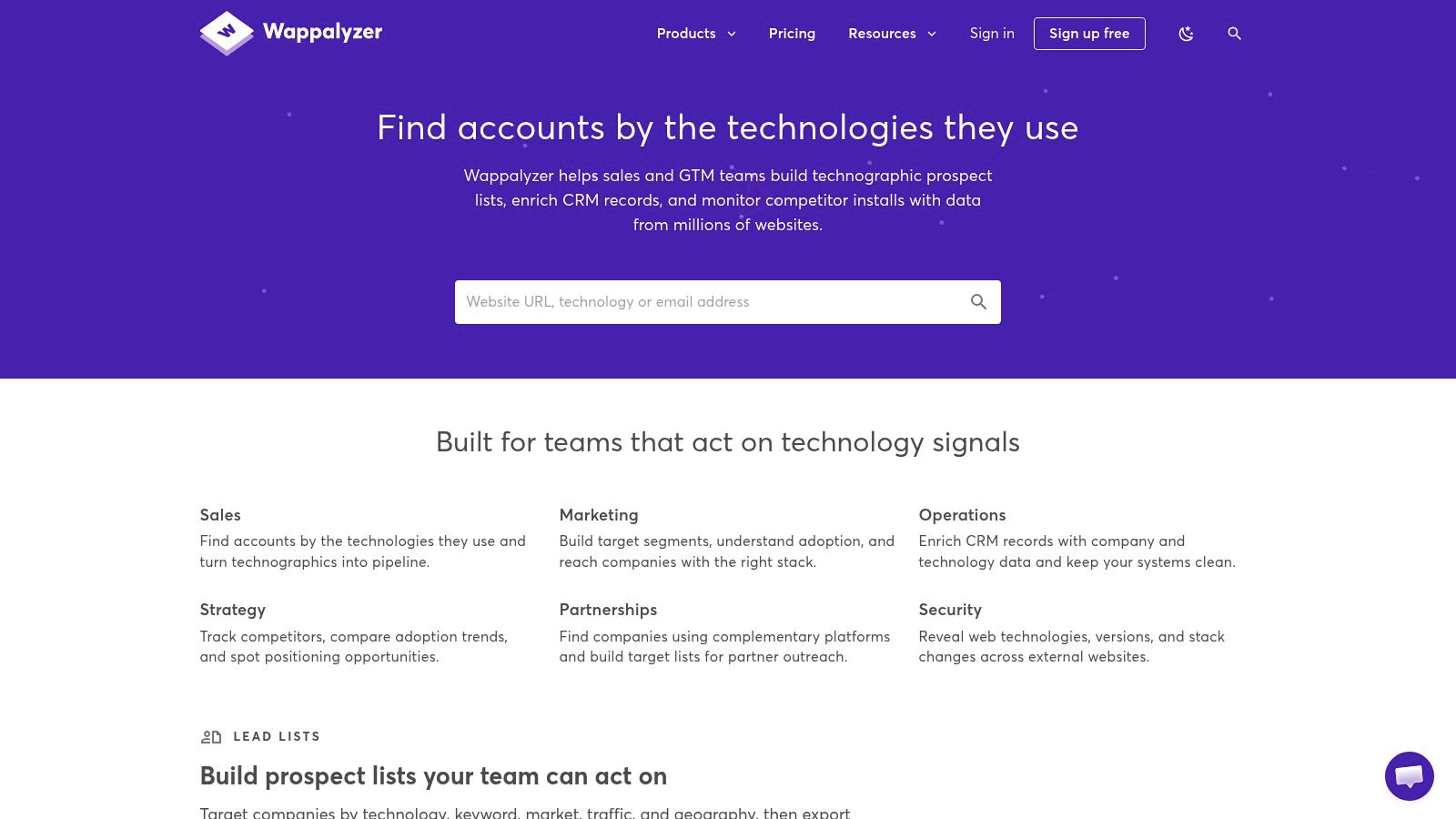
BuiltWith is the tool many analysts reach for when the question goes beyond a single page. It is built for technology intelligence, not only CMS spotting, so it suits teams that care about patterns across many sites, historical change, and adoption across a market. If the question is “what stack is this?”, it can answer that. Its stronger use is in the follow-up questions, “who else uses this?” and “how is this technology spreading?”
That broader view is why it appears so often in competitive research workflows. It is useful for prospect lists, account research, and tracking adoption over time, because its historical data shows change instead of only a snapshot. For a more focused look at the same problem, it helps to compare it with a tech stack analysis workflow, especially when you need to connect CMS detection with adjacent signals like hosting, scripts, and platform clues. That makes it a different kind of website CMS detector, one aimed at analysis rather than quick browsing.
Why teams still pay for it
BuiltWith works well when you need scale and structure. If you are researching technologies across large lists of companies, or you need trend reporting that goes beyond one-off detection, it feels more suited to research teams than to casual checks. Higher tiers also include CRM and sales integrations, which helps when technographic data needs to move into a pipeline.
The trade-off is cost and pace. A large historical system can be valuable, but if you need the freshest view of a single page, a live extension or a real-time scanner may be a better fit. BuiltWith is strongest when the job is repeated analysis, not instant certainty on one URL.
Best use cases
Use BuiltWith for competitor analysis, account prioritization, lead enrichment, and market tracking. It is also useful when you need to review technology adoption at the company level instead of just identifying the CMS on one page. For agencies, that makes it easier to build reports that show both the platform and the surrounding stack.
A few practical strengths stand out:
- Historical context: You can see how a stack changes over time.
- Research-friendly output: It works well for lists, segments, and reporting.
- Sales workflow fit: Integrations help route technographic data into existing systems.
The limit is the same one you see with any research-first detector, the result is only as useful as the signals available. Still, when the goal is to understand the CMS and the broader technology mix behind a site, BuiltWith is a strong place to start.
4. WhatCMS
WhatCMS works well for CMS-first checks, and that narrow focus is why practitioners keep it in the toolkit. It starts with the main question, what content system is this site using, then adds related metadata and adjacent technology details when they are available. For a fast read on the platform behind a site, that direct approach is useful.
The practical advantage is how it handles uncertainty. CMS detection is messy, and published comparisons from Kentico's identification guide show that mature tools still leave room for doubt Kentico's CMS identification guide. A detector that exposes confidence levels is more useful than one that presents every result as settled fact.
WhatCMS also fits the newer AI website detector use case better than many old-school profilers because it stays close to the evidence on the page. That matters when a site is custom-built, partly generated, or wrapped in a theme that hides the usual CMS markers. I prefer tools that show their work, especially when the goal is to separate a real CMS from a builder claim or a lightweight frontend shell.
Why specialists like it
WhatCMS is a practical choice for focused discovery and integration. It supports single-URL checks and bulk use through its API, so teams can plug it into workflows that already center on CMS identification. If your job is to classify many sites and you do not need a broad technographic layer, that specialization keeps the output cleaner.
The trade-off is coverage. Because it is narrower than full-stack profilers, you get less detail on non-CMS tooling. That is fine for platform recognition, but it is a limit if you also need frameworks, hosting clues, or evidence that supports a broader stack review. For teams that care about both CMS identity and page-level signals, pairing WhatCMS with a second detector usually produces a better read.
If you need a more general way to compare detection tools, the broader website CMS detector category gives you a useful baseline for judging where WhatCMS fits in the workflow.
Practical fit and limits
WhatCMS is strongest when the task is quick classification with enough context to make a decision. It works well for audits, lead research, and sanity checks before a deeper manual review. The output is most valuable when you already know you want CMS identification first and broader technographic analysis second.
Its limit is simple. If the site uses unusual delivery patterns, heavy frontend abstraction, or an AI-assisted build layer, a CMS-specific result may not tell the full story. In those cases, use WhatCMS as the first pass, then verify with a profiler that can inspect the rest of the stack.
4. WhatCMS
WhatCMS is more specialized, and that focus is exactly why many practitioners keep it around. It's built to identify CMS platforms first, then extend into related metadata and adjacent technology details. If you want a tool that stays close to the core question, “what content system is this site using?”, WhatCMS feels direct and practical.
The strongest reason to use it is confidence handling. CMS detection is messy, and the industry guidance makes that clear, with mature tools often landing around an 84% detection rate in published comparisons from Kentico's identification guide Kentico's CMS identification guide. A CMS-specific detector that surfaces confidence levels is therefore more honest than a tool that pretends every site is obvious.
Why specialists like it
WhatCMS is a good fit for focused discovery and integration. It supports single-URL checks and bulk use through its API, which makes it suitable for workflow automation when you already know the task is CMS identification. If your team is classifying many sites and doesn't need the broader technographic layer, that specialization can keep the output cleaner.
The downside is scope. Because it's narrower than full-stack profilers, you get less depth on non-CMS tooling. That's fine if your work is centered on platform recognition, but it's a limitation if you also need frameworks, hosting, or marketing tools in the same report.
Where it earns its keep
For agencies, analysts, and SEOs, WhatCMS makes sense when the priority is a reliable first read. It's especially useful when you want a clear application status instead of an overloaded technographic dump. For larger operations, the API is the asset, because it lets CMS detection live inside your own pipeline.
When I'm checking a site that may have been rebuilt, migrated, or partially hidden behind custom front-end work, I like tools that stay disciplined about what they know. WhatCMS does that well, and that restraint is often more useful than flashy breadth.
5. Gochyu
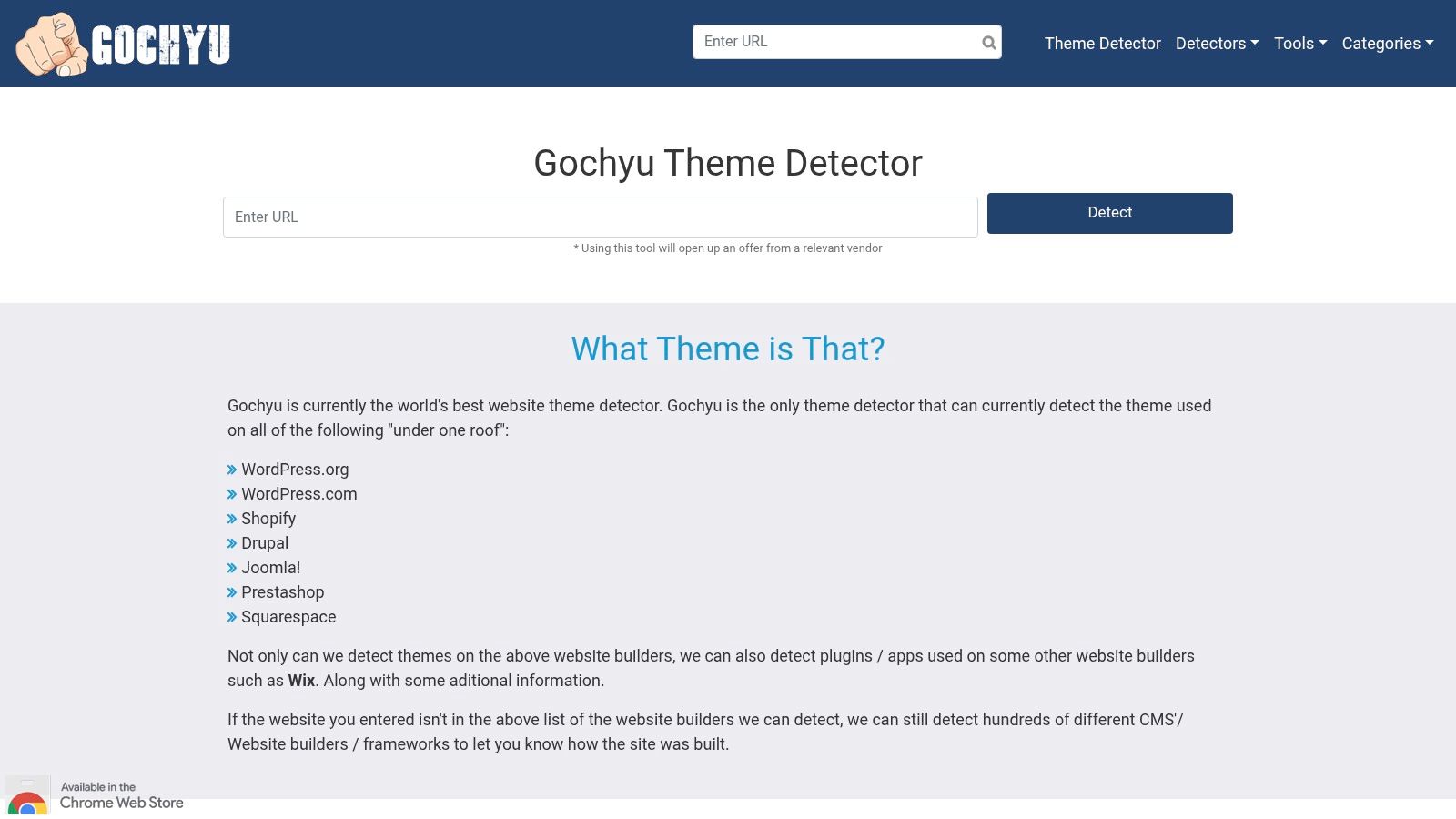
Gochyu is handy when the CMS name alone isn't enough. It aims at platform detection, but it also goes into theme and plugin identification, which is where a lot of real-world curiosity lives. If you've ever looked at a polished WordPress site and wanted to know not just “WordPress or not?” but “which theme and which plugin stack?”, this is the sort of tool that saves time.
That extra layer matters because many sites hide their CMS labels in the visible page while leaving clues in paths, assets, and markup. Tools and guides consistently point to artifacts like /wp-content/, /wp-includes/, /wp-admin/, /administrator/, and /user/login as concrete indicators of common platforms DNSRobot's CMS detector guide. Gochyu sits comfortably in that practical tradition.
Why it's useful
The no-signup, quick-check style makes it good for one-off lookups. The Chrome extension also helps when you're browsing and want a faster read without copying URLs around. For WordPress-heavy work, its theme and plugin focus is the main reason to keep it in the toolkit.
The limit is that customization can hide a lot. Headless builds, heavily modified themes, or sites with stripped fingerprints can reduce what any detector sees. That's not a flaw unique to Gochyu, it's just the nature of modern web architecture.
Best use cases
- Theme identification: Good when visual inspiration turns into technical research.
- Plugin checks: Helpful for understanding a WordPress stack more fully.
- Quick browsing: The extension keeps the workflow light.
If you're a designer or developer studying how a site was assembled, Gochyu gives you enough detail to move from surface imitation to informed replication. It's not the deepest market-research tool, but for practical CMS and theme reconnaissance, it's solid.
6. WhatRuns
WhatRuns is the browser-first choice for people who want an answer while they're already looking at a page. It's lightweight, fast to install, and good at revealing the visible layers around a CMS, including front-end technologies and supporting tools. For everyday browsing, it's the kind of detector that stays out of the way until you need it.
Its appeal is simplicity. Click the extension, read the stack, move on. That makes it useful for developers scanning competitors, marketers reviewing campaign pages, and founders trying to understand a site without opening a larger profiler. As a website CMS detector, it's best when friction matters more than deep reporting.
What it does well
WhatRuns is especially handy for quick reconnaissance. It can surface CMS details and some front-end assets like fonts and UI libraries, which helps you understand not just the platform but the presentation layer too. That's valuable because many modern sites are built from combinations of frameworks, styles, analytics, and CMS outputs rather than a single monolithic system.
Its free core model is a major reason people keep it installed. If you only need occasional checks, it's hard to argue against a tool that gives you the basics with almost no setup.
Where it falls short
The trade-off is depth. WhatRuns is extension-only in practice, so it's not the tool I'd pick for bulk research, market mapping, or systematic competitive intelligence. It's a browser companion, not an enterprise profiler.
Good browser extensions tell you what's there. Great ones also tell you what they're less certain about.
WhatRuns is better at the first part than the second. Use it for speed, then move to a deeper tool when you need evidence, history, or broader stack coverage.
7. W3Techs Site Info
W3Techs Site Info is the methodical option. It doesn't try to feel flashy, and that's part of its appeal. When you want a conservative read on CMS, programming language, web server, or hosting details, it gives you a clean site-level view that feels built for validation rather than excitement.
This is the kind of tool I'd use when I want a second opinion. Broad profilers can be very useful, but a measured detector can help you spot overconfident guesses. That matters in CMS work because the world includes hidden templates, rewritten assets, and partial migrations, and those can confuse faster tools.
Why validation teams like it
W3Techs fits into checks where trust and repeatability matter. The API is useful if you want to integrate detections into internal systems, and the taxonomy is broad enough to support more than one layer of analysis. It's also a useful complement to tools that lean more heavily into enrichment or lead generation.
The user experience is utilitarian, so don't expect a polished sales dashboard. What you get instead is a straightforward site info lookup that plays well in workflows where accuracy and consistency matter more than presentation. If you need a CMS detector that behaves like a reference layer, this is the kind of tool you keep around.
Best use cases
Use W3Techs when you want to confirm a result, compare across multiple tools, or build a lightweight internal validation process. It's especially helpful if you already have a suspected CMS and want a calmer read before you act on it.
For teams that do a lot of site classification, that restraint is useful. It won't hand you a giant story around every site, but it can help you avoid overreading one noisy signal.
8. Netcraft Site Report
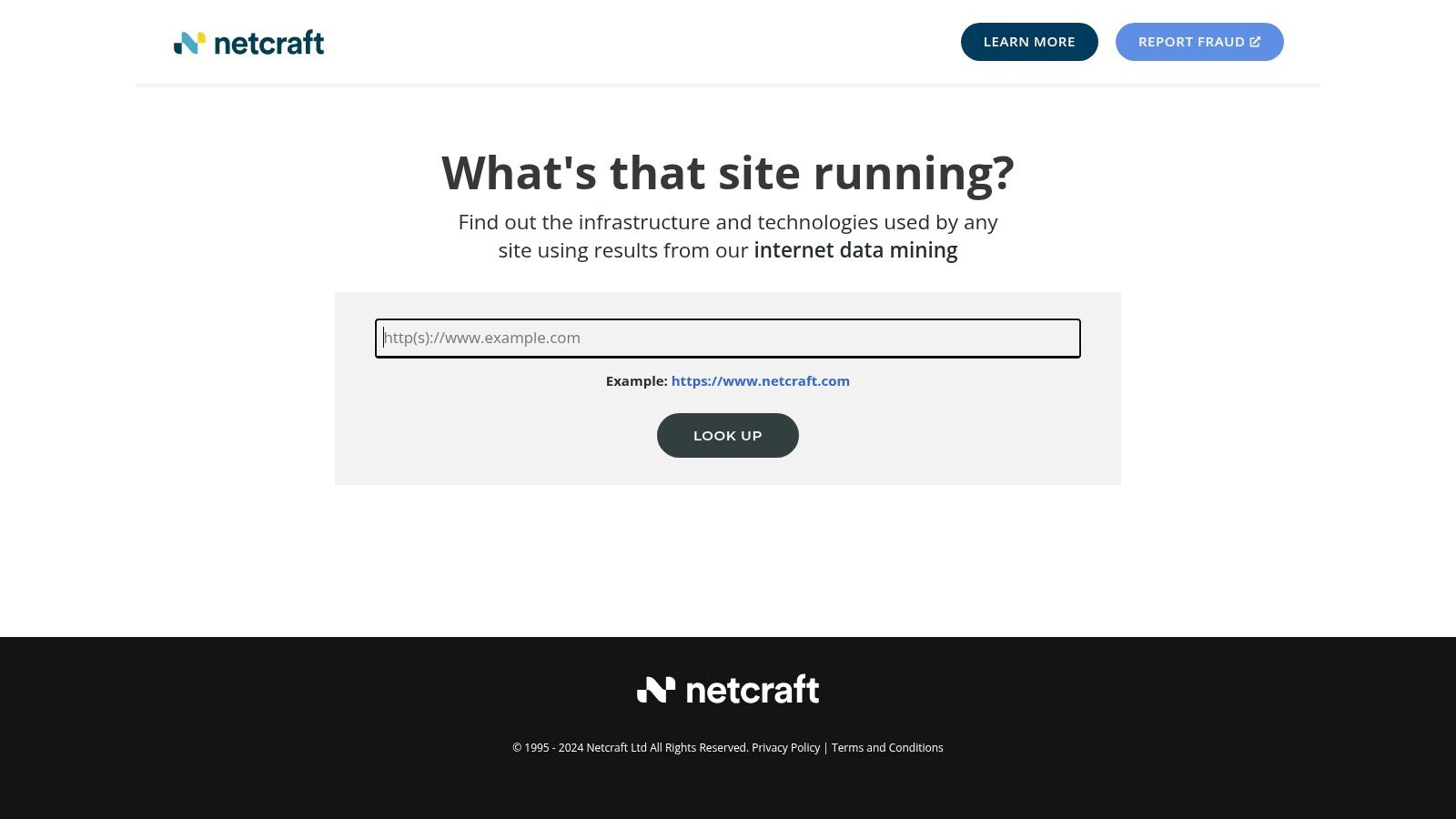
Netcraft is the odd one in this list in a good way. It's not trying to be a pure CMS detector, and that makes it useful for security-minded checks where the infrastructure context matters just as much as the platform name. If you're doing due diligence, vendor review, or risk assessment, the Site Report gives you clues that a normal CMS scan can miss.
That's important because many sites don't advertise their stack cleanly. In those cases, hosting, first-seen information, and infrastructure metadata can still point you in the right direction. Netcraft complements CMS detection by widening the lens beyond the page itself.
Where it helps most
I'd use Netcraft when I care about reputation and infrastructure context. It's valuable in security workflows and in any situation where the CMS sits inside a larger trust question. If the site is obscured, the surrounding signals can still be informative.
The free public reports make it easy to check a domain without committing to a platform. The enterprise side is there if a team needs more, but for many users, the public report is enough to decide whether to dig further.
Why it belongs in a CMS workflow
Netcraft is useful because real-world detection is rarely about one tool. It's about overlapping evidence. A site can hide CMS hints in the HTML and still expose useful metadata in the infrastructure layer, and Netcraft is one of the better places to look for that second layer.
When the CMS is hidden, infrastructure clues often tell you more than the homepage does.
That's why I treat Netcraft as a supporting detector. It won't always be the final answer, but it often strengthens the answer you already suspect.
9. SimilarTech
SimilarTech sits closer to the sales and market-intelligence side of the world. It detects site technologies, supports company-level enrichment, and helps you build prospecting views around specific stacks. If your goal is to map technology adoption across companies, it can be more useful than a pure single-site detector.
Its browser extension makes quick profiling possible, but the value is in the platform around the detection. That includes filters and company intelligence, which can help turn a CMS question into a list-building exercise. In practice, that means it's less about “what does this site use?” and more about “who uses this stack, and how do I segment them?”
When to choose it
SimilarTech makes sense for marketing teams, sales ops, and researchers who need technographics paired with company data. If you already think in terms of segments, firmographics, and prospecting views, it fits that workflow naturally.
The trade-off is that some of the experience leans toward sales use cases rather than technical depth. That's not a problem if you're building outreach lists, but it can feel heavier than needed if all you want is a fast CMS answer. For pure technical reconnaissance, a lighter tool may feel better.
Practical read
Use SimilarTech when you want the stack to connect to the company behind it. That's the part it handles well. When a CMS detector becomes a company-intelligence tool, your output changes from isolated site notes into a usable research asset.
For teams that care about lead generation and market mapping, that's a meaningful advantage. It's less about curiosity and more about action.
10. WebTechSurvey
WebTechSurvey is built for teams that need programmatic technology data across many domains. It detects website technologies, including CMSs, and exposes an API, reports, and a crawler called WebTechBot. That makes it a solid fit for enrichment pipelines where CMS detection is one layer of a broader dataset.
The best reason to use it is operational convenience. If your team wants detection wired into internal tooling rather than handled manually, API access matters. It also combines company and location signals, which helps when CMS data needs to sit inside a larger research or segmentation workflow.
Why it's a practical choice
This is not the flashiest option, but it can be a clean fit for teams that think in terms of data flow. If you're classifying websites at scale or enriching internal records, WebTechSurvey looks like the kind of service that can slot into an existing stack without too much ceremony.
The crawler's robots.txt controls are a useful sign that it's built with web norms in mind. For many practitioners, that matters as much as the detection itself, because you want a service that behaves predictably in production work.
What to keep in mind
The ecosystem is smaller than the biggest profilers, and pricing isn't publicly listed, so you'll likely need to talk to sales. That makes it less convenient for solo users than the browser extensions in this list.
Still, when the job is bulk enrichment rather than casual inspection, WebTechSurvey has a clear role. It's the kind of detector you choose when the CMS answer has to travel through a pipeline and land somewhere useful.
Top 10 Website CMS Detector Comparison
| Tool | Core features | UX / Quality | Price & Value | Target audience | Unique selling points |
|---|---|---|---|---|---|
| AI Website Detector 🏆 | Realtime scanner; fingerprints 80+ AI builders + CMS; multi‑signal evidence; AI probability & verdicts | Instant no‑signup scans; saved results; screenshot + signal‑by‑signal explanations; 4.7/5 ★★★★☆ | Free tier (10 scans/30m; 100/day w/ account); API from €12/mo 💰 | 👥 Founders, PMs, devs, agencies, researchers | ✨ Bundle‑artifact scanning; vibe‑code heuristics; transparent evidence; leaderboards |
| Wappalyzer | Browser extension + web lookup + REST API; broad technographic categories | Easy trial; extension UX; reliable detection ★★★★ | Free monthly lookups; paid API tiers 💰 | 👥 Developers, marketers, sales teams | ✨ Wide tech coverage; granular API endpoints |
| BuiltWith | Site profiler with deep taxonomy; historical trends & bulk lists | Large historical dataset; strong market‑sizing UX ★★★★ | Free single lookups; enterprise features priced higher 💰 | 👥 Market researchers, sales, analysts | ✨ Historical adoption & trend reports; lead lists |
| WhatCMS | CMS‑focused detector (300+ CMSs); API; hosting & WP theme endpoints | Transparent confidence scores; CMS accuracy ★★★ | Free checks; paid API for volume 💰 | 👥 Integrators, CMS specialists, integrators | ✨ High CMS detection fidelity; WordPress theme metadata |
| Gochyu | CMS + theme/plugin detection; Chrome extension | Fast no‑signup scans; strong WP theme/plugin depth ★★★ | Free detector; paid for scale 💰 | 👥 WordPress devs, site maintainers | ✨ Theme/plugin specificity across CMSs |
| WhatRuns | Lightweight browser extension; detects front‑end libs, fonts, tags | Instant on‑page recon; minimal friction ★★★★ | Free extension; optional Leads product 💰 | 👥 Quick recon users, designers, marketers | ✨ Follow sites for change alerts; UI/font detection |
| W3Techs Site Info | Site‑level tech lookups (CMS, server, language); commercial API | Trusted methodology; conservative detections ★★★★ | Free lookups; commercial API available 💰 | 👥 Analysts, researchers validating results | ✨ Well‑cited taxonomies and conservative methodology |
| Netcraft Site Report | Hosting, infra, first‑seen dates; security & reputation context | Security‑oriented reports; timeline data ★★★★ | Free public reports; enterprise services via sales 💰 | 👥 Security teams, due‑diligence analysts | ✨ Infrastructure/reputation insights useful when CMS is obscured |
| SimilarTech | Tech detection + company enrichment; extension + market views | Large crawl footprint; company‑level enrichment ★★★★ | Lead/enterprise pricing via sales 💰 | 👥 Sales, market intelligence, competitive research | ✨ Company‑level technographics and prospecting filters |
| WebTechSurvey | CMS & multi‑category tech detection; public API; WebTechBot crawler | API‑friendly for bulk enrichment; documented crawler ★★★ | Pricing via sales; API for bulk 💰 | 👥 Teams needing large‑scale enrichment | ✨ Proprietary crawler (WebTechBot); company & location signals |
Choosing the Right Website Detector for Your Needs
The best website CMS detector depends on what you're trying to do. If you just landed on a site and want a fast read while you browse, a browser extension like WhatRuns or Wappalyzer is usually enough. If you're validating a competitor's build, checking whether a site was AI-assisted, or trying to understand a stack from multiple evidence layers, AI Website Detector is the most distinctive option in this list because it pairs CMS detection with transparent reasoning and modern builder coverage AI Website Detector.
For market research and historical analysis, BuiltWith remains the heavyweight. It's the strongest option when your question is about adoption across many sites, not just one page. SimilarTech and WebTechSurvey make more sense when the CMS result has to connect to company-level data or automated pipelines.
Specialized CMS tools still matter too. WhatCMS is the cleanest fit when you want a focused CMS verdict, while Gochyu is useful when theme and plugin details matter. W3Techs Site Info works best as a validating layer, and Netcraft Site Report earns its place when infrastructure and security context matter as much as the CMS itself.
The trade-off in this category is breadth versus clarity. Broader profilers catch more surrounding technology, but specialist detectors often feel cleaner when you need a direct answer. In practice, the strongest workflow is usually two-step, one tool for the first read, another for confirmation. That's especially true on modern sites where AI builders, headless layers, and customized front ends can blur the obvious fingerprints.
If you're a founder, marketer, developer, or analyst, don't just pick the tool with the most features. Pick the one that matches your decision. The right detector should help you act faster, explain your findings better, and avoid making assumptions based on a pretty homepage.
If you want a detector that goes beyond a simple CMS label, AI Website Detector gives you evidence-led scans, AI builder recognition, and visible stack signals in one place. It's a strong fit when you need to verify how a site was built, compare modern builders, or document the technical evidence behind a claim.