
How to Find What Website Builder Any Site Uses
The fastest way to identify a website builder: paste the URL into Aiwebsitedetector, read the confidence rationale, then confirm with two manual signals in Browser DevTools. That two-step method covers roughly 90% of detection scenarios without creating an account or installing anything.
Here’s the quick version:
- Step 1: Run a no-signup scan on Aiwebsitedetector. It checks meta tags, script paths, CSS class patterns, hosting fingerprints, and more across its dataset of over 164,864 websites and returns a confidence score with a rationale.
- Step 2: Open Browser DevTools (F12), search the page source for
generator,powered-by, or platform-specific asset paths like/wp-content/or.wix-class prefixes to confirm.
Trust the automated result when confidence is high and at least two artifact types match. Run a deeper manual audit when confidence is medium or low, or when the site uses a CDN that rewrites asset paths.
Table of Contents
- How to run an automated scan to detect website builder
- Which detection approach fits your situation?
- What to look for in DevTools and view-source
- Common builder fingerprints at a glance
- When detection fails: limits and how to verify anyway
- The 7-step audit workflow for developers and auditors
- Key Takeaways
- Detection is harder than most guides admit
- Aiwebsitedetector gives you detection plus context
- FAQ
How to run an automated scan to detect website builder
The procedure takes under a minute when you know what each output field means.
- Open the detector: Go to the tech stack detector and paste the full domain (include
https://). - Start the scan: Hit scan and wait for the detection bar to populate. Aiwebsitedetector checks CMS markers, framework signatures, hosting headers, and plugin fingerprints in real time.
- Read the confidence rationale: The output shows detected artifacts grouped by type: CMS, frameworks, hosting, plugins. A high-confidence result means multiple artifact types matched. Medium means one strong signal plus circumstantial evidence. Low means a single weak match.
- Capture evidence: Screenshot the full results panel or copy the scan URL. For audit purposes, the scan URL functions as a timestamped record.
- Troubleshoot low-confidence results: If the scan returns “unknown,” try stripping the subdomain and rescanning the root domain. Check whether
robots.txtblocks crawlers or a Content Security Policy restricts external script loading. If both fail, switch to Browser DevTools for a manual pass.
Pro Tip: Save the scan URL immediately after a successful detection. Aiwebsitedetector’s result pages carry the detection rationale and artifact list, which you can paste directly into a ticket or audit report without reformatting.
Which detection approach fits your situation?
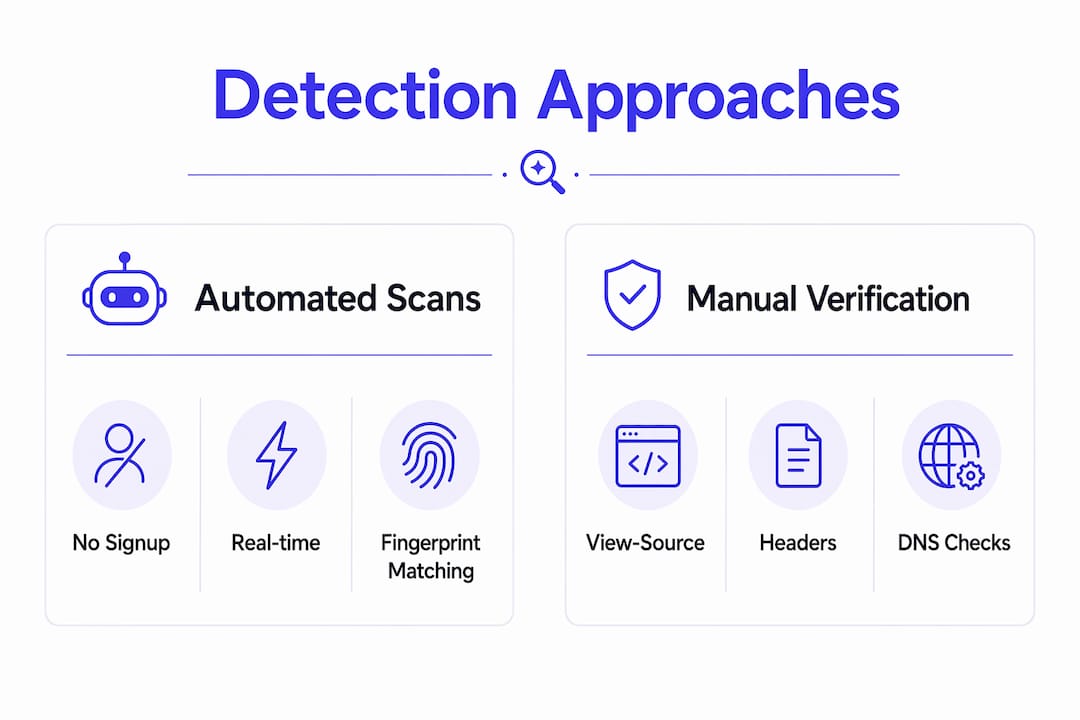
Automated detectors compare found patterns against fingerprint databases and return confidence levels tied to the number of matches. Browser DevTools gives you primary-source evidence directly from the live page. The right choice depends on your goal and how much the site owner has tried to obscure the stack.
| Tool / Method | Confidence scoring | Platform coverage | Free, no signup | Real-time scan | API / bulk scan | Detects AI builders | Pricing |
|---|---|---|---|---|---|---|---|
| Aiwebsitedetector | Yes, with rationale | — | Yes | Yes | Yes (paid) | Yes (core feature) | Freemium |
| Browser DevTools / view-source | Manual judgment | Any platform | Yes (built-in) | Yes | No | Possible with effort | Free |
| Online detector services (category) | Varies by tool | Varies | Varies | Varies | Some | Rarely | Free to paid |
| BuiltWith | Yes | Very broad | Limited free | Yes | Yes (paid) | Partial | Freemium |
| Wappalyzer | Yes | Very broad | Yes (extension) | Yes | Yes (paid) | Partial | Freemium |
| WhatRuns | Basic | Moderate | Yes (extension) | Yes | No | No | Free |
| Stackcrawler | Yes | Moderate | Limited | Yes | Yes | No | Paid tiers |
How to read the table:
- Confidence scoring with rationale means the tool explains why it reached a conclusion, not just what it found. That distinction matters when you need to defend a finding.
- AI builder detection is a specialized capability. Most general-purpose detectors flag Wix or WordPress but miss Framer AI, Lovable, or Wix ADI. Aiwebsitedetector treats this as a core feature.
- No-signup, real-time scanning is the practical differentiator for quick audits. Browser DevTools always qualifies, but it requires manual interpretation.
- A hybrid workflow, automated scan first, then DevTools verification on ambiguous signals, produces the most defensible results.
What to look for in DevTools and view-source
When an automated scan returns low confidence or the site is actively blocking crawlers, manual inspection is your fallback. Work through these signals in order, from fastest to most effort-intensive.
- Meta generator tag: In view-source, search
generator. Wix, Squarespace, and WordPress frequently leave this tag intact. Example:<meta name="generator" content="Squarespace 7.1">. - Script and stylesheet paths: Search for
/wp-content/,.wix-,webflow.io,framer.com, orcdn.squarespace.com. Script paths and CSS class naming often survive obfuscation attempts because they are baked into compiled assets. - Unique CSS class patterns: Wix uses
.wix-prefixes extensively. Webflow generates classes likew-nav,w-container. Framer outputs classes with randomized hashes but loads assets fromframerusercontent.com. - XHR and script hostnames: In the Network tab, filter by JS and look at request origins. A site loading scripts from
static.wixstatic.comis almost certainly Wix regardless of what the HTML says. - Application tab: Check localStorage and cookies for platform-specific keys. Wix stores session data under
wixSession; Shopify uses_shopify_*cookies. - Console errors: Framework-specific error messages sometimes name the platform directly.
Pro Tip: Check DNS records and HTTP response headers using a tool like curl -I or MXToolbox. Headers like X-Powered-By, Server, or X-Generator sometimes reveal the backend even when the front-end is fully masked by a CDN.
Common builder fingerprints at a glance

Visual similarity to a SaaS template is a weak detection signal. A site that looks like a Squarespace template may run on a headless CMS or a custom stack, so always audit backend artifacts rather than front-end aesthetics.
| Builder | Key fingerprint | Where to look | Reliability |
|---|---|---|---|
| Wix | static.wixstatic.com assets, .wix- CSS classes, wixSession cookie |
Network tab, view-source, Application | High |
| Webflow | webflow.io in script src, w-nav / w-container CSS classes |
view-source, Elements panel | High |
| Framer | Assets from framerusercontent.com, randomized class hashes |
Network tab | High |
| Squarespace | cdn.squarespace.com, <meta name="generator" content="Squarespace..."> |
view-source | High |
| WordPress | /wp-content/, /wp-includes/, wp-json REST endpoint |
view-source, Network | High |
False positives to watch for:
- CDNs like Cloudflare or Fastly can rewrite asset hostnames, hiding the origin platform.
- White-label Wix sites sometimes strip the
wixstaticreferences from visible HTML but leave them in network requests. - Headless deployments of WordPress or Shopify may show no classic fingerprints in the HTML at all. Check the REST API endpoint (
/wp-json/wp/v2/) or Shopify’sPowered-By: Shopifyresponse header instead.
When detection fails: limits and how to verify anyway
Automated detectors analyze meta tags, script sources, CSS links, and HTML attributes, then score confidence based on pattern matches. That process breaks down in predictable ways.
Server-side rendering (SSR) strips most client-side fingerprints before the HTML reaches the browser. Next.js and Nuxt deployments of headless Shopify or WordPress often look completely clean in view-source. Your best signal is the API endpoint or a response header.
CDN rewriting and asset proxying are the most common reason a high-confidence scan is wrong. The site owner routes all assets through a custom domain, so cdn.squarespace.com becomes assets.theirbrand.com. Cross-check with a secondary tool from a different detector category before concluding.

Bot-blocking and rate limits cause scans to return “unknown” on sites that detect headless browsers. Try the scan from a different IP or use Browser DevTools directly, since you are browsing as a real user.
Intentional obfuscation is rare but real. Agencies sometimes remove generator tags and rename CSS classes as part of a white-label delivery. In those cases, DNS records and WHOIS history are your best remaining signals. Check public archives like the Wayback Machine for earlier versions of the site that may have been less carefully scrubbed.
When you cannot reach a firm conclusion, document the uncertainty explicitly: record what evidence you found, what you could not confirm, and what confidence band the result falls in.
The 7-step audit workflow for developers and auditors
Use this sequence to produce a defensible, evidence-backed detection result every time.
- Define the objective. Are you assessing migration feasibility, auditing a competitor, or verifying a client’s stack? The goal shapes which signals matter. SaaS builders prioritize convenience over deep customization, so migration risk is a primary concern for client audits.
- Run the Aiwebsitedetector scan. Paste the domain and capture the full output. Aiwebsitedetector draws on signals from over 164,864 websites to calibrate confidence, which makes its rationale more defensible than a binary yes/no result.
- Run a secondary check. Use Browser DevTools or a different detector category (Wappalyzer, BuiltWith) to cross-reference. Two independent sources agreeing on the same platform is the threshold for high confidence.
- Extract fingerprints. Copy the specific artifacts: script paths, CSS class names, generator tags, and network request hostnames. These are your evidence, not the tool’s verdict.
- Check hosting, DNS, and headers. Use
curl -Ior MXToolbox to pull response headers. Hosting and CDN infrastructure directly affect performance and SEO, making it a critical factor in platform assessment. - Assess migration and exportability risk. SaaS platforms can restrict content export and design portability, so flag this explicitly if the audit is for a client considering a platform switch.
- Document findings. Record: scan output URL, view-source snippet, network asset paths, DNS/WHOIS notes, and a confidence rating (high/medium/low). That package is what goes into the ticket or handoff report.
Key Takeaways
The most reliable way to identify a website builder is to combine an automated scan with two manual verification signals, then document the evidence before declaring a result.
| Point | Details |
|---|---|
| Start with an automated scan | Aiwebsitedetector scans in real time with no signup and returns a confidence rationale, not just a verdict. |
| Verify with two manual signals | Check meta generator tags and network asset hostnames in DevTools to confirm or challenge the automated result. |
| Know when to escalate | Low confidence, CDN rewriting, or SSR are all triggers for a full manual audit using the 7-step workflow. |
| Document before concluding | Capture scan URL, view-source snippet, asset paths, and a confidence rating for every audited site. |
| Aiwebsitedetector as first step | For fast, evidence-ready detection across — including AI builders, start every audit at Aiwebsitedetector. |
Detection is harder than most guides admit
The conventional advice is simple: paste a URL, read the result, done. That works maybe 60% of the time. The other 40% involves CDNs masking asset origins, headless deployments with no classic fingerprints, or white-label agencies that scrubbed the obvious signals before delivery.
What most detection tutorials skip is the verification layer. A single automated result, even a high-confidence one, is a hypothesis, not a finding. The audit workflow above exists precisely because “the tool said Webflow” is not the same as “I confirmed Webflow via three independent artifact types.” That distinction matters when you are advising a client on migration cost or writing a competitive analysis someone will act on.
The other underappreciated point: AI-built sites are genuinely harder to detect than traditional builder sites. Framer, Lovable, and Wix ADI produce output that can look custom-coded at the HTML level. General-purpose detectors like Wappalyzer and BuiltWith were not built with AI builder fingerprints as a priority. That gap is exactly why a specialized tool with a dataset tuned for AI-built sites changes what is detectable.
Aiwebsitedetector gives you detection plus context
Most detection tools tell you the platform. Aiwebsitedetector tells you the platform, the confidence rationale, the full tech stack, and whether AI tools were involved in building the site. That last piece is increasingly the question clients and auditors actually need answered.
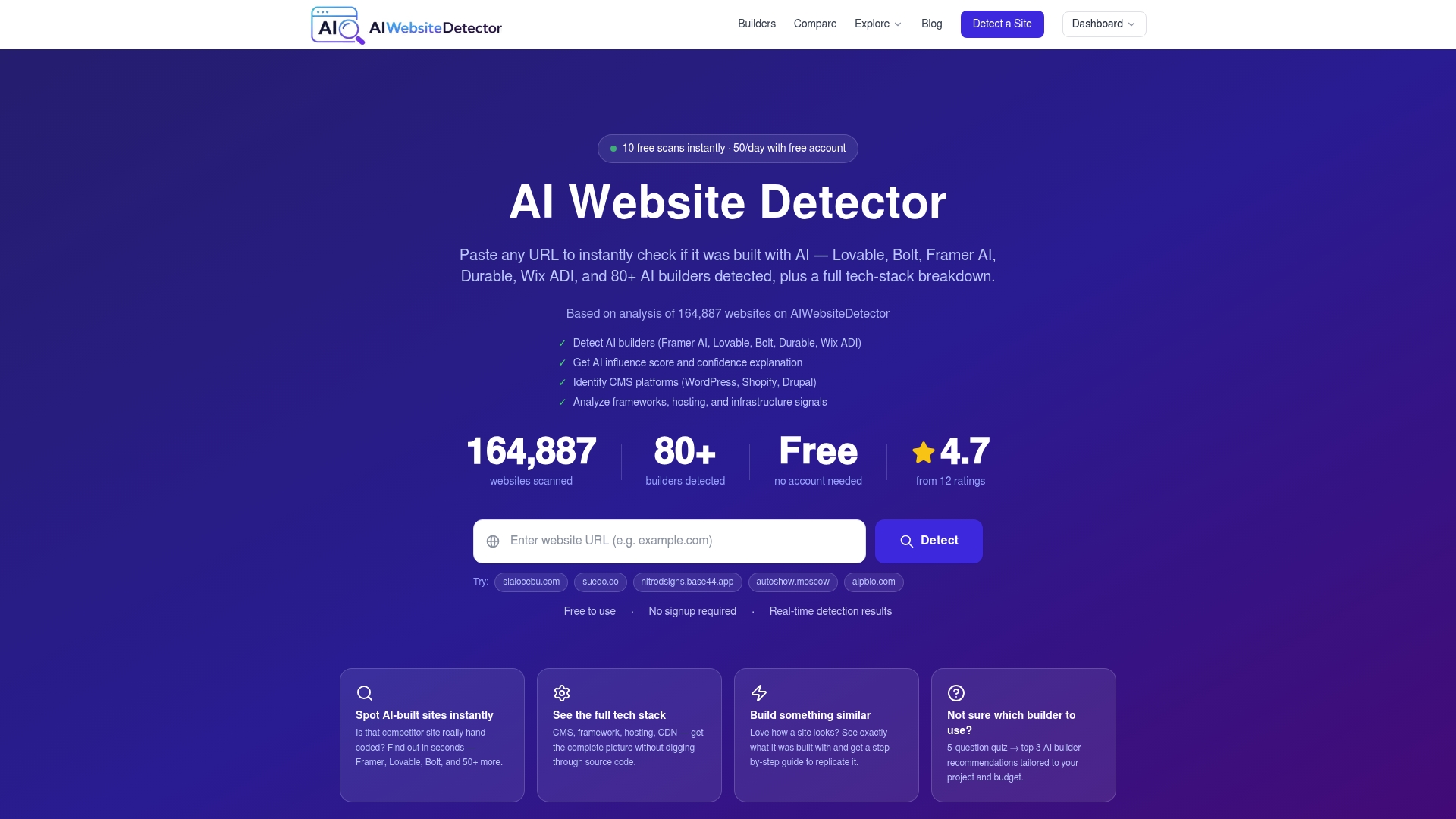
For developers running competitor audits or agencies vetting a client’s existing site before a rebuild, that context cuts hours off the discovery phase. No account required for a first scan. Paid plans unlock API access and higher scan volumes for teams running bulk analyses at scale. Run your first scan at aiwebsitedetector.com and see the full rationale for yourself.
FAQ
What is the fastest way to identify a website builder?
Paste the domain into Aiwebsitedetector for a no-signup, real-time scan, then confirm with a quick view-source search for generator tags or platform-specific asset paths.
Can I detect a website builder without any tools?
Yes. Open view-source and search for generator, /wp-content/, .wix-, or webflow.io. These fingerprints are often present even on sites that have not been deliberately obfuscated.
Why does a detector sometimes return “unknown”?
Low-confidence or unknown results usually mean the site uses server-side rendering, a CDN that rewrites asset paths, or active bot-blocking. Switch to Browser DevTools and check response headers with curl -I for a manual fallback.
Can automated tools detect AI-built websites?
Most general-purpose detectors miss AI builders like Framer, Lovable, or Wix ADI. Aiwebsitedetector is specifically trained on AI builder fingerprints and treats AI detection as a core feature across its dataset of over 164,864 websites.
What should I include in a detection audit report?
Include the scan output URL, a view-source snippet showing the key artifact, network asset hostnames, DNS or WHOIS notes, and a confidence rating of high, medium, or low.