What CMS Does This Site Use: Detection Methods Explained
Someone on your team opens a competitor's homepage, pastes the URL into a detector, gets a platform label, and the meeting moves on. That's normal. It's also where a lot of bad technical assumptions start.
The problem with asking what CMS does this site use is that modern sites don't always expose a neat answer. A storefront might run Shopify with a heavily customized frontend. A publishing site might use WordPress behind a decoupled app. Another domain might return no obvious CMS markers at all, not because the checker failed, but because the visible layer was built to hide them.
A careful answer isn't just a platform name. It's an evidence chain. You're reading traces left in headers, HTML, cookies, asset paths, endpoints, and infrastructure. Sometimes the result is clear. Sometimes it's only probable. And sometimes “no CMS detected” is the most honest verdict you can give.
Table of Contents
- Why the Question Is Harder Than It Looks
- Reading Headers, Meta Tags, and HTML Clues
- How Detection Tools Score and Rank Signals
- Choosing Between Manual Checks and Automated Scanners
- Probing Paths, Feeds, and Infrastructure for Confirmation
- When the Answer Is No CMS Detected
- Putting the Evidence Together for a Confident Verdict
Why the Question Is Harder Than It Looks
The easy version of CMS detection came from an older web where themes, admin paths, and generator tags were left in plain sight. That still happens. WordPress is still the dominant CMS. W3Techs lists it at 40.2% of all websites and 58.8% of identified CMS usage, with a long trend that shows gradual change rather than sudden swings. The same W3Techs history also shows Shopify rising from 0.7% to 7.8% over the trend window while WordPress moved from 60.7% to 58.8% of known-CMS share (W3Techs CMS history).
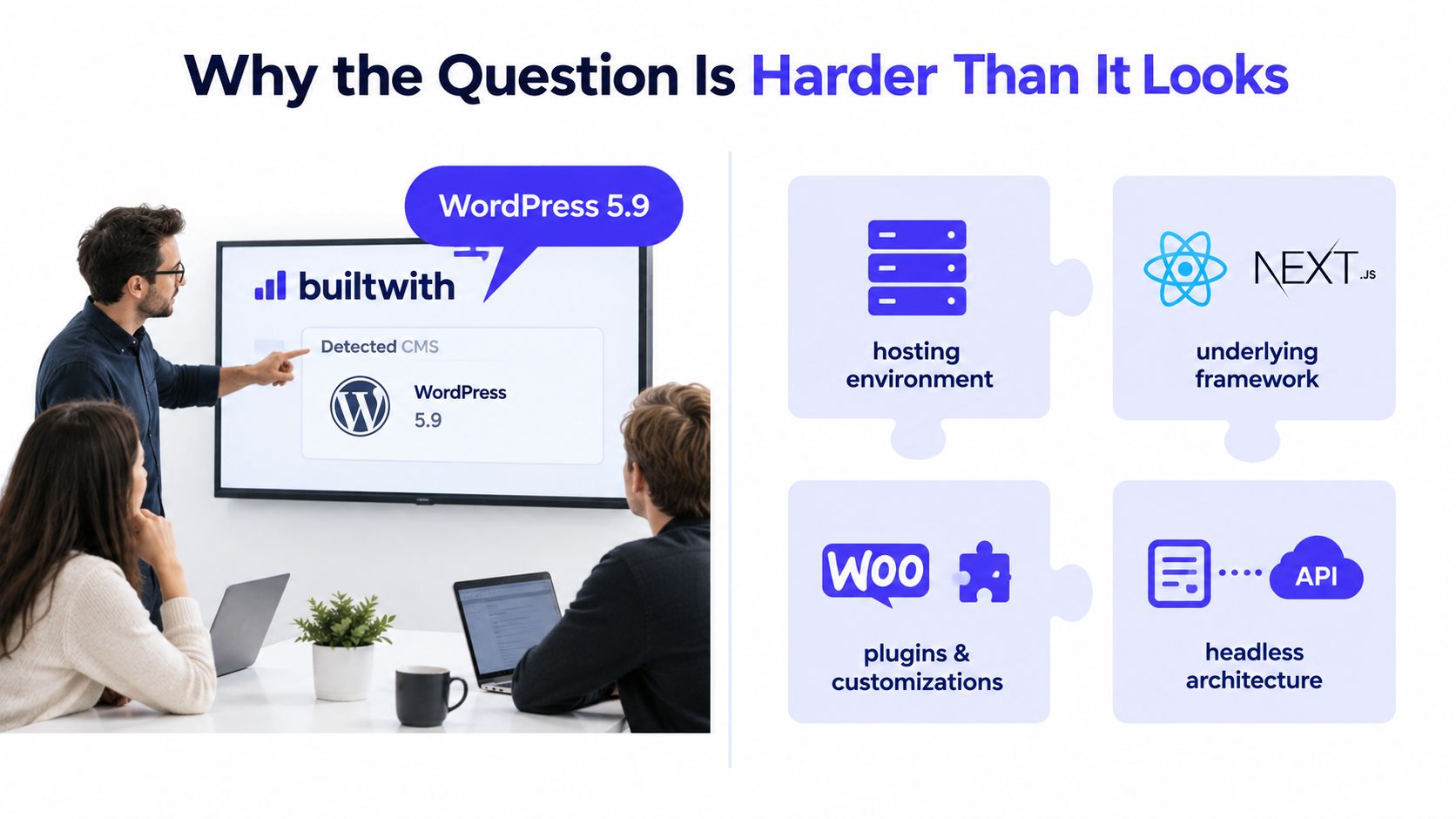
But that headline hides the harder part. A major blind spot in CMS detection is the large bucket of sites that don't reveal a recognizable platform. One 2026 analysis reported that 48.3% of measurable web origins had no detectable CMS, up from 46.75% in mid-2024, and explicitly said that this group includes static sites, headless and Jamstack builds, hand-built pages, and newer platforms without stable fingerprints (Orilyt analysis of CMS detection blind spots).
What usually hides the answer
Three setups make simple lookups less reliable:
- Headless builds strip the public frontend away from the authoring system, so the browser sees React, Vue, or a static export instead of the CMS.
- Aggressive caching and reverse proxies replace origin headers and sometimes serve flattened HTML that removes useful markers.
- Intentional obfuscation deletes generator tags, rewrites asset URLs, or blocks predictable endpoints.
That's why a single lookup tool can be directionally useful but still incomplete.
Practical rule: Treat CMS detection as attribution under uncertainty, not as a magic label generator.
Four signal groups matter most
A reliable workflow reads four categories of evidence:
- Headers and HTML clues
- Cookies and asset paths
- Active probes to known paths and feeds
- Infrastructure signals such as DNS and favicon fingerprints
If you read those as a chain, your verdict gets sturdier. If you rely on one clue, you'll get fooled by a lot of polished frontends.
Reading Headers, Meta Tags, and HTML Clues
Before running scanners, inspect what the site gives away passively. This is the fastest way to separate obvious platforms from sites that need deeper work.
Start with response headers
Headers often leak implementation details even when the page looks clean. I look for X-Powered-By, Server, and any Link headers that point to APIs. A Link header can hint at REST or GraphQL endpoints. A Server banner can reveal a hosting layer or framework-adjacent clue. X-Powered-By sometimes exposes a backend language or runtime, though it's often removed on hardened deployments.
None of these proves the CMS on its own. They narrow the search space.
Meta generators help, but they're fragile
The generator meta tag is the first thing many people check because it's easy to spot in page source. It's also one of the least trustworthy markers. Site owners remove it, edit it, or fake it all the time.
That doesn't make it useless. It makes it a supporting signal. If a generator tag says WordPress and the assets also include /wp-content/, that's meaningful. If the generator tag is your only evidence, keep digging.
A generator tag can confirm a conclusion. It shouldn't create one by itself.
Cookies often expose the platform more honestly
Cookies are harder to fake consistently across a full implementation. They also survive on sites where source markup has been cleaned up.
Look for patterns such as:
- Shopify clues like
_shopify_yorcart_currency - WordPress session clues such as
wp-settingsor related admin/session cookies - Platform-specific cart or preview cookies that don't appear in static exports
Cookie names won't always be present on anonymous pageviews, but when they are, they're some of the better passive clues available.
Asset paths are the workhorses
Most day-to-day CMS detection comes from static file paths and script URLs. These are often more durable than generator tags and less abstract than headers.
| Platform | Header Signal | Meta/Cookie | Asset Path |
|---|---|---|---|
| WordPress | X-Powered-By or API-related Link headers may appear |
wp-settings cookies or generator tag may appear |
/wp-content/, /wp-includes/ |
| Shopify | Server and CDN layers may reveal commerce stack indirectly | _shopify_y, cart_currency |
/cdn/shop/ |
| Drupal | Response behavior may hint at Drupal routes | generator tag may appear on some installs | /sites/default/files/ |
| Magento | Headers are often less obvious on hardened builds | platform cookies can help when present | Magento-specific skin or static asset patterns |
| Next.js frontend | hosting headers may point to edge delivery | no CMS cookie at all on static pages | /_next/ |
A few path patterns matter enough to memorize. /wp-content/ and /wp-includes/ are classic WordPress tells. /sites/default/ strongly suggests Drupal. /cdn/shop/ is a familiar Shopify asset pattern. /_next/ indicates a Next.js frontend, which matters because it may mean you're looking at a framework layer, not the content layer.
How Detection Tools Score and Rank Signals
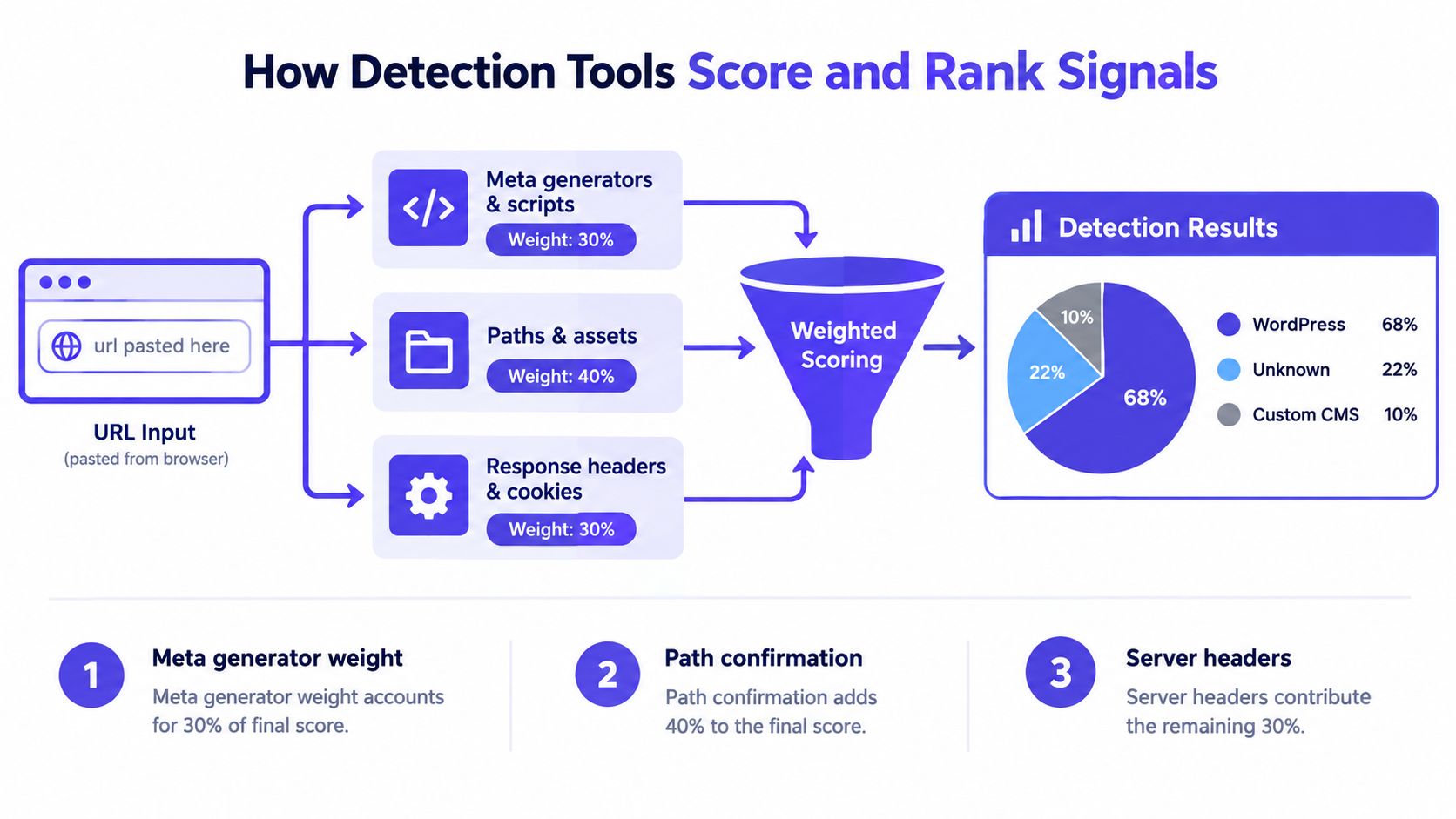
Paste a URL into a checker and you're not getting magic. You're getting a scoring model.
Good detectors don't rely on one marker. They combine weak and strong signals, assign weight to each, and rank likely platforms. A documented CMS-detection workflow recommends combining passive signals from headers, cookies, and meta tags with active probes such as path checks, DNS resolution, feed fetching, and favicon hashing. In one documented weighting scheme, HTTP headers and X-Powered-By or Server signals get 55 points each, cookies get 45, and JavaScript variables get 35 (documented CMS detection weighting model).
Why clusters beat single clues
One /wp-content/ reference might be a leftover asset on a migrated site. Add a WordPress cookie, a generator tag, and a WordPress-specific endpoint, and the answer becomes much stronger. Practical detection guidance consistently emphasizes that the most reliable fingerprints come from a cluster of independent indicators, not a single marker. Common examples include generator tags, file paths such as wp-content, /sites/default/, or /components/com_, script and stylesheet URLs, JavaScript globals, and response headers (multi-signal fingerprinting guidance).
That's the logic behind confidence levels. High confidence means the signals agree across categories. Low confidence usually means the tool found one or two hints that could belong to several stacks.
How to read tool output like an analyst
If you use a scanner such as a website CMS identifier, don't stop at the verdict label. Check whether it explains the matched evidence. The difference between “WordPress” and “WordPress because /wp-content/, login behavior, and cookie patterns matched” is the difference between a guess and an auditable result.
For higher-stakes work, I also want to know how the score was built. AI Website Detector publishes a scoring methodology overview, which is the kind of transparency that helps when you need to decide whether a result is solid enough to repeat in a client deck.
Choosing Between Manual Checks and Automated Scanners
There isn't one best method. The right method depends on how much certainty you need and how many sites you're checking.
Manual review is slower, but it exposes the reasoning. Automated scanners are fast, but they compress that reasoning into a label and a confidence estimate. Browser extensions sit in the middle. They see the page in context, but they still inherit the limitations of what the page exposes.
Where each method fits
| Method | Speed | Transparency of Reasoning | Failure Mode | Best Use |
|---|---|---|---|---|
| Manual inspection in DevTools and source | Slower | High | Misses hidden layers if you stop too early | Client audits, competitor teardowns |
| Browser extensions like Wappalyzer or WhatRuns | Fast | Medium | Can miss lazy-loaded or masked dependencies | Quick checks while browsing |
| Automated scanners | Very fast | Varies by tool | Black-box scoring, CDN masking, false certainty | Prospecting and broad domain lists |
What manual checks still do better
A manual pass lets you inspect network requests, source HTML, cookies, endpoint behavior, and hydration scripts together. That matters when the public page is cached or partially decoupled. It also matters when you need to explain why you believe a site uses one stack and not another.
I trust manual work more when the verdict affects pricing, procurement, or a competitive teardown.
What scanners do better
Scanners win on coverage. If you're triaging a long domain list, speed matters more than perfect attribution on every single site. Tools such as BuiltWith, Wappalyzer, WhatRuns, and AI Website Detector are practical because they collect signals quickly and surface likely patterns at scale.
For broader stack research, it also helps to keep a reference process on hand, such as this guide on how to find website tech stack, because CMS detection is often only one layer of the investigation.
Manual review gives you a defensible explanation. Automated scanning gives you throughput.
One side note from real audits. Infrastructure clues outside the CMS can matter when the site itself is quiet. For example, when teams are tracing operational setup rather than just frontend tech, I've sometimes used utilities adjacent to web analysis, like this guide on How to get IMAP server, because mail and web infrastructure together can reveal who controls the environment.
Probing Paths, Feeds, and Infrastructure for Confirmation
Passive clues create a hypothesis. Active probes test it.
The strongest confirmations usually come from requesting paths that a platform tends to expose and checking how the server responds. A path returning a valid response, redirect, or platform-specific behavior is often more meaningful than a decorative clue in source code.
Probe the obvious paths first
For WordPress, common checks include /wp-login.php, /wp-admin/, /wp-content/, /wp-includes/, and /feed/. Drupal often leaves traces around /core/, /misc/drupal.js, or /sites/default/. Shopify storefronts can reveal themselves through storefront behavior, asset hosts, or predictable commerce URL structures.
Response interpretation matters. A 200, redirect, login form, or feed output can all help. A generic block page or CDN error tells you less.

Look beyond the CMS layer
Infrastructure can confirm or complicate your first impression. DNS resolution, feed fetching, and favicon hashing are part of a stronger active workflow, not optional extras. The documented detection approach cited earlier explicitly recommends combining those active probes with passive collection in a weighted model rather than treating them as separate exercises.
Useful confirmation angles include:
- Feed behavior when a site exposes a standard RSS or content endpoint
- Favicon hashing when a favicon matches known platform fingerprints
- DNS ownership patterns that align with a hosting or builder ecosystem
- Admin path behavior that distinguishes a real platform route from a coincidence
If you want to inspect whether the site exposes crawl-related files that support this work, a robots.txt checker is handy because robots rules sometimes disclose admin paths, feeds, or blocked application areas.
Don't trust one successful probe
A single path hit isn't enough. Proxy layers can mimic responses, and some sites deliberately create decoy routes. Confirm with a second probe from a different category. For example, pair a login-path result with a cookie pattern, or pair an asset-path clue with a feed endpoint.
That habit cuts down false positives more than any single detector tweak.
When the Answer Is No CMS Detected
“No CMS detected” sounds like a dead end. It usually isn't.
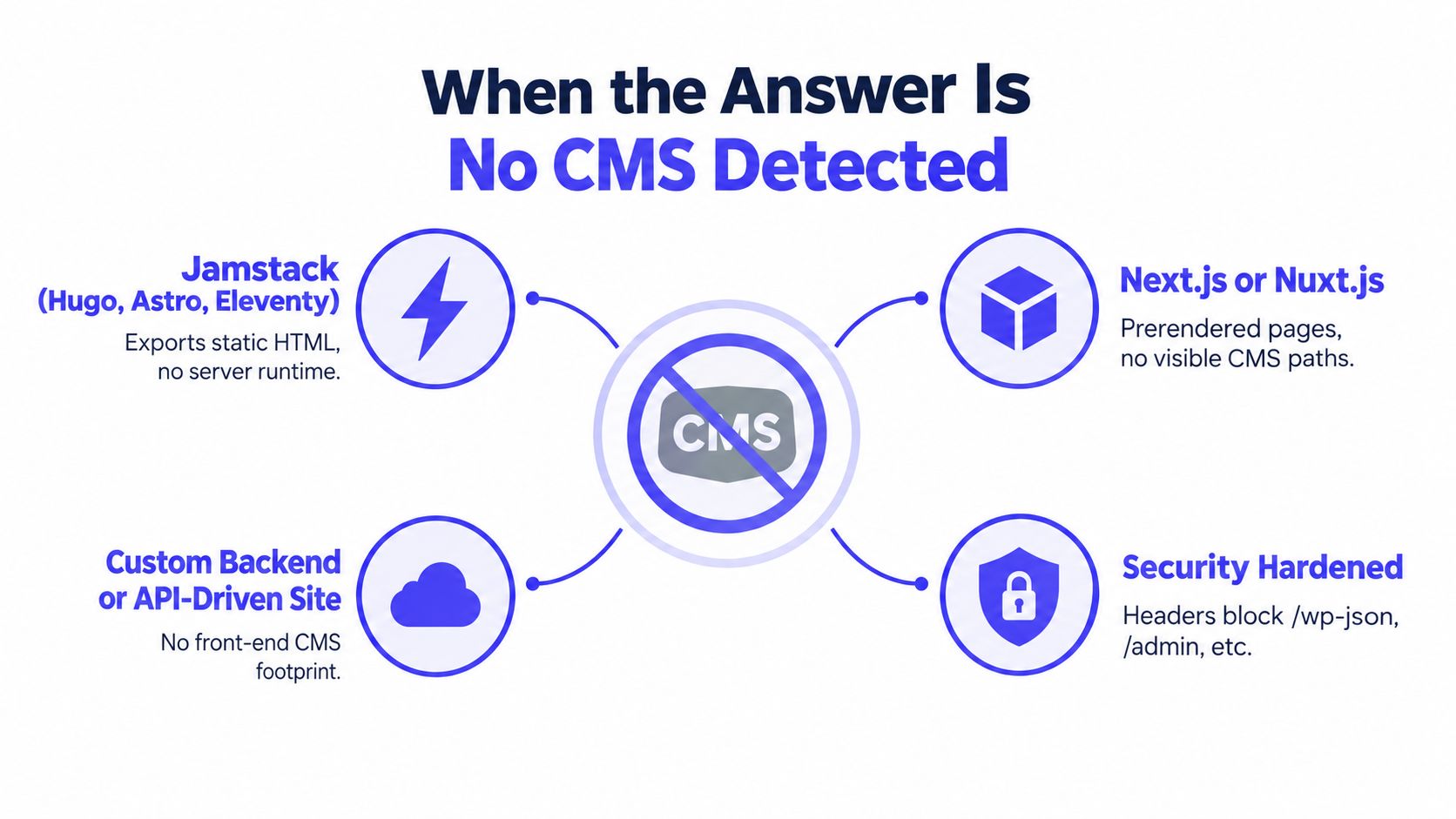
A separate detection guide notes that the question often isn't just which CMS a site uses, but what stack and what evidence support that answer, especially as detection has to account for custom-domain AI builds, Jamstack deployments, and frontend frameworks. It also notes that no detectable CMS can reflect headless setups using technologies like Next.js, Astro, Hugo, or Eleventy (stack-focused CMS detection perspective).
What that verdict often means
There are a few common explanations:
- Static or Jamstack output means the browser gets flat HTML and CDN-delivered assets, not a visible CMS footprint.
- Headless architecture means the authoring system lives behind APIs while the frontend runs on a separate framework.
- Custom application backends can generate pages with no reusable public fingerprint.
- Security-hardened or obfuscated builds remove the obvious traces that simpler tools depend on.
What to inspect next
When the public layer hides the CMS, shift your attention:
- JavaScript bundles can reveal framework conventions and build patterns.
- Source maps and script naming may hint at deployment tooling.
- DNS and provider relationships can expose the builder or hosting ecosystem.
- Hydration artifacts can tell you whether the visible site is static, server-rendered, or app-driven.
Here's a useful mindset shift.
“Unknown” is still evidence. It tells you the visible layer isn't exposing a standard CMS fingerprint.
A short explainer can help if you want to see how this looks in practice:
Putting the Evidence Together for a Confident Verdict
A solid verdict comes from organizing clues, not from collecting the most clues.
I use a simple evidence sheet. Passive signals go first. Then I add active confirmations. Contradictions get their own line because they usually reveal the most interesting part of the stack. A Shopify storefront with a React or Next.js frontend isn't a failed result. It's a more precise one.
A simple weighting model for real audits
| Signal Category | Weight (0–3) | Example Fingerprints |
|---|---|---|
| Headers and meta | 1 to 2 | X-Powered-By, generator tag, API Link headers |
| Cookies | 2 to 3 | wp-settings, _shopify_y, cart/session cookies |
| Asset paths and scripts | 2 to 3 | /wp-content/, /sites/default/, /_next/, /cdn/shop/ |
| Active probes | 3 | login paths, feeds, admin redirects, API behavior |
| Infrastructure clues | 1 to 2 | favicon matches, hosting alignment, provider patterns |
When to trust the call
A verdict is usually strong when you have agreement across categories. Two weaker signals from different categories often beat one strong signal from a single category. That's especially true on proxied sites.
I slow down and re-check when I see any of these:
- CDN-masked headers that say more about the edge than the origin
- Generic favicons reused across unrelated properties
- Missing or unusual crawl files that remove easy context
- A frontend framework clue that doesn't align cleanly with the suspected CMS
For teams building repeatable audit workflows, a structured technical checklist helps. This fix-first technical audit playbook is a useful model for turning scattered findings into prioritized evidence.
The practical standard is simple. If you can explain why the answer is likely true, the verdict is useful. If you can't explain it, keep it provisional.
AI Website Detector can help when you need more than a platform label. It scans for CMS, framework, hosting, and AI-builder signals, then shows the evidence behind the verdict so you can tell the difference between WordPress, Shopify, Next.js, and a hard-to-identify stack. If you want to test a URL and see the reasoning chain, visit AI Website Detector.